

Your Abiotic Factor server is ready as soon as the order completes: press Start in the control panel, set a name and a password, and hand your group the address. This guide covers that first ten minutes, then the handful of files that actually decide how your facility plays.
Start the server for the first time
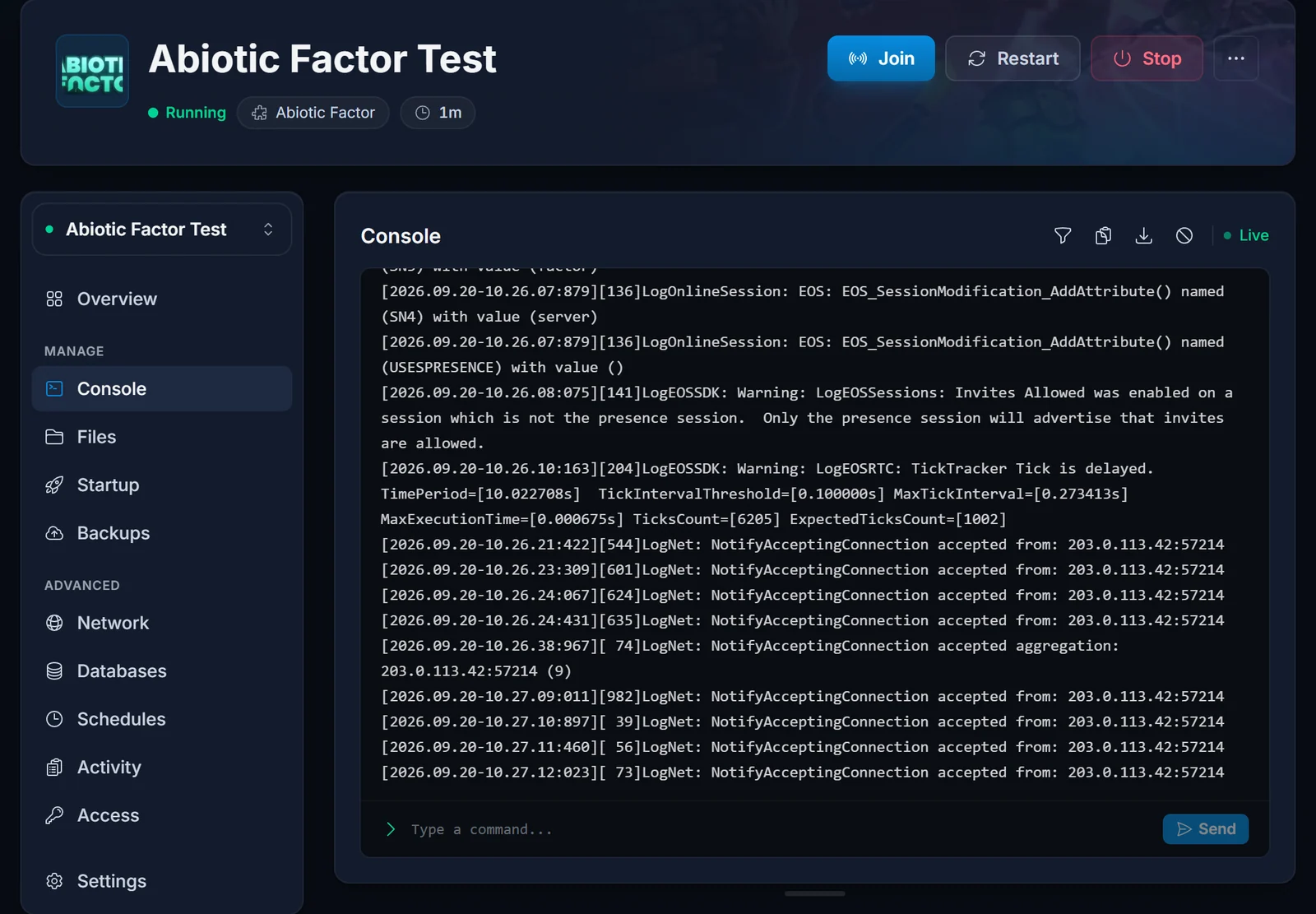
Open the server in your control panel and press Start. The first boot downloads the dedicated server files from Steam, which takes a few minutes on a fresh server, and the console prints Engine is initialized. once it is live and listening.
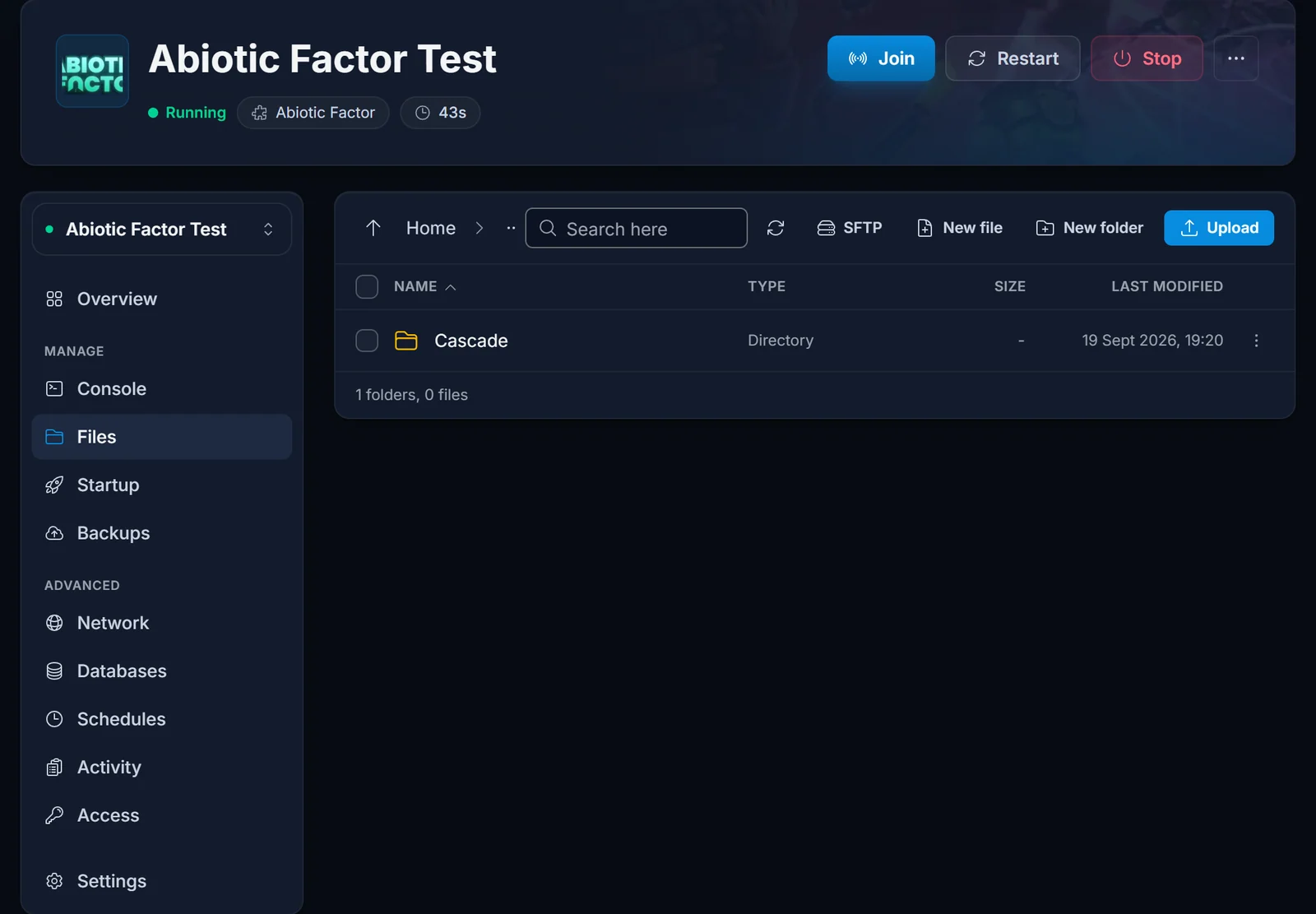
Nothing has to be configured before that first start. The server creates a world called Cascade by itself and keeps it under AbioticFactor/Saved/SaveGames/Server/Worlds/.
One thing to know before you ever press Stop: the server autosaves every five minutes and does not write an extra save when it shuts down. We measured that on our own test server. So give it a moment to pass an autosave before stopping or restarting, and put scheduled restarts in hours when nobody is in the facility.
Set your server name and password
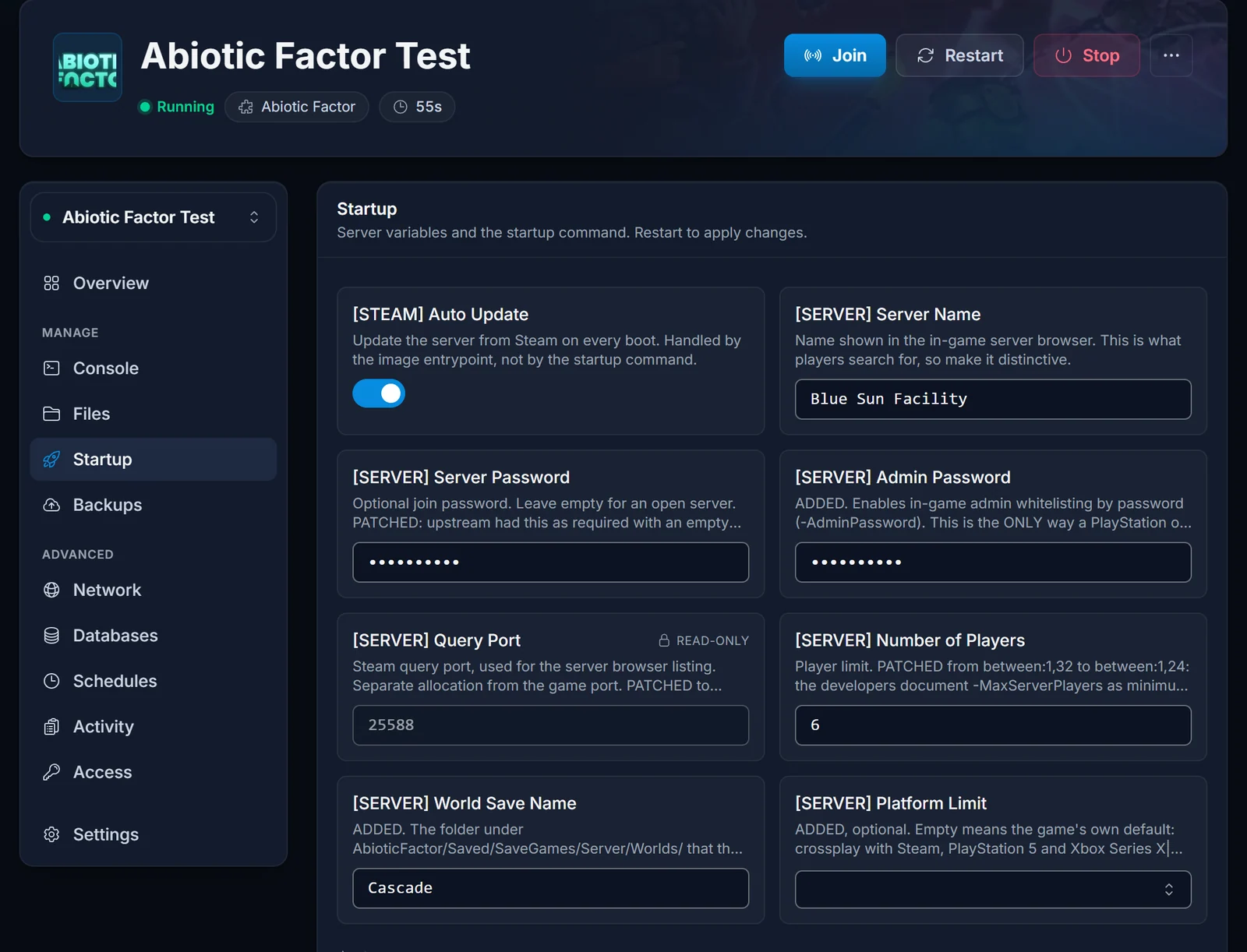
Both live on the Startup tab.
Server Name is what players type into the in-game server browser to find you, so make it searchable and a little unusual. Searching for "Abiotic" alone returns a page of other people's servers, and yours will be somewhere in it.
Server Password is optional. Leave it empty for an open server, or set one to keep the facility to your group. Players are prompted for it as they join.
Restart the server after changing either one. The name takes a minute or two to update in the browser, because the server has to re-advertise itself first.
Make yourself an admin
There are two routes, and which you need depends on what your group plays on.
Admin password, works on every platform. Set an Admin Password on the Startup tab and restart. In game, open the admin menu, type the password, and your account is whitelisted as an admin on that server. Use this route if anyone who needs admin rights is not on Steam.
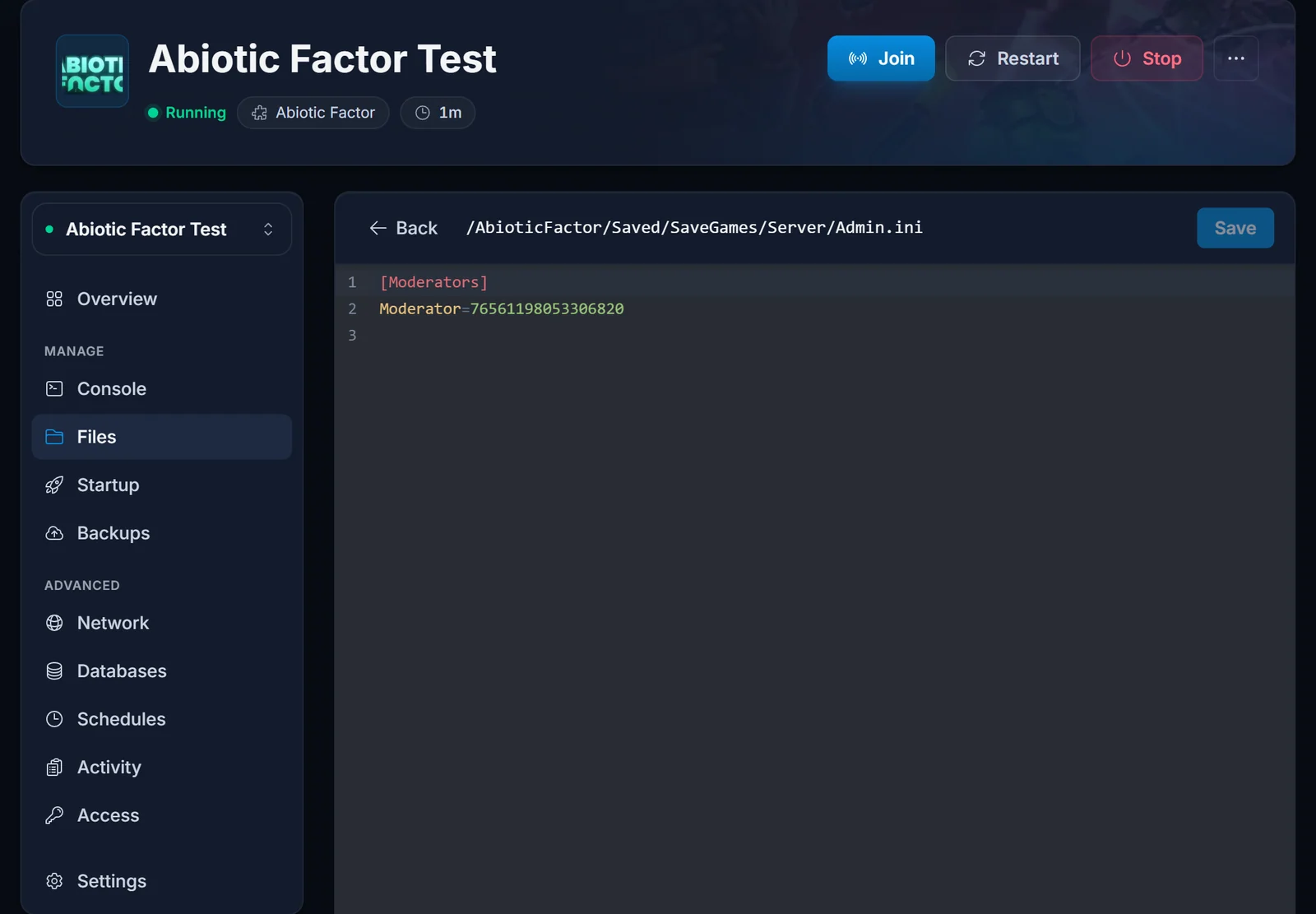
Admin.ini, Steam only. The server keeps a moderator list at AbioticFactor/Saved/SaveGames/Server/Admin.ini. Stop the server, open the file from the Files tab, and add your SteamID64 under the [Moderators] heading:
[Moderators]
Moderator=76561198053306820
One Moderator= line per person. This file accepts Steam ids only: Xbox and PlayStation accounts cannot be added here, which is exactly why the admin password exists.
Watch one thing with this file: the server rewrites Admin.ini on every boot, and on a fresh server it rewrites it empty, heading and all. Edit it with the server stopped, then start the server and open the file again to confirm your ids are still there. If they are not, use the admin password route instead.
Change the game rules
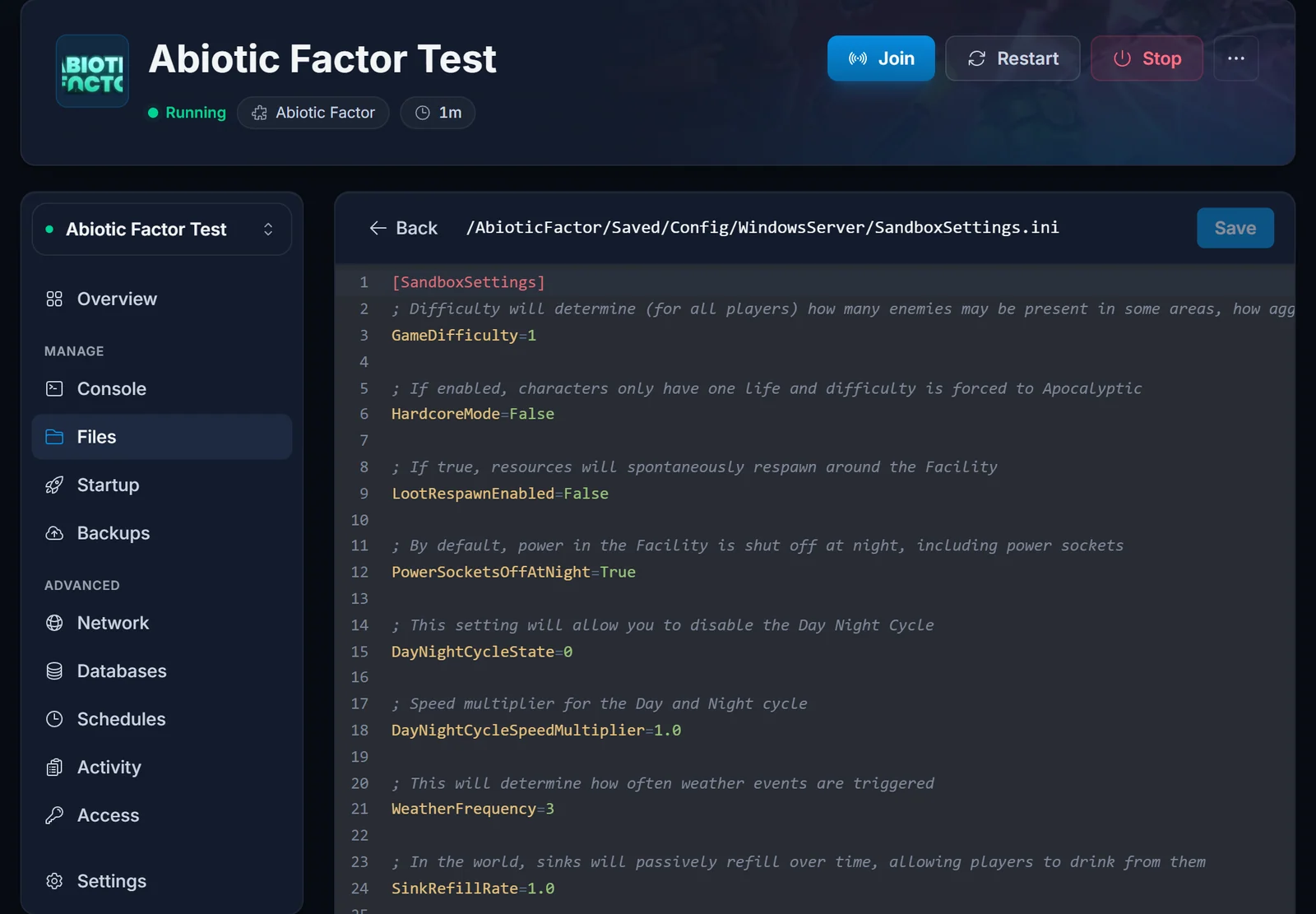
Difficulty, loot, survival speed, death penalties and roughly forty other settings live in one file: AbioticFactor/Saved/Config/WindowsServer/SandboxSettings.ini. Stop the server, open it from the Files tab, change what you want, save, and start again.
The values groups change most often:
GameDifficulty=1
LootRespawnEnabled=False
DeathPenalties=1
DamageToAlliesMultiplier=0.5
PowerSocketsOffAtNight=True
DisableResearchMinigame=False
GameDifficulty is 1 Normal, 2 Hard or 3 Apocalyptic. LootRespawnEnabled=True makes resources come back around the facility, which suits a server people drop into at odd hours. DeathPenalties runs from 0, which keeps everything, to 5, which destroys everything. DamageToAlliesMultiplier has to be 1.0 or higher before players can seriously hurt each other.
Every key in the file carries a comment explaining what it does, so you can read your way through it without leaving the editor. Values are a number, a whole number from a short list, or True / False with a capital first letter.
Bring a singleplayer world with you
If you have already started a facility in singleplayer or in a player-hosted session on Steam, move it onto the server instead of starting again.
- On your own PC open
%LocalAppData%\AbioticFactor\Saved\SaveGames\, then the folder named after your Steam id, thenWorlds. - With the server stopped, upload the whole world folder into
AbioticFactor/Saved/SaveGames/Server/Worlds/. - Either rename the uploaded folder to
Cascade, or set its name as the world save name on the Startup tab. - Start the server. Everything you built comes across with it.
Saves made on PlayStation, Xbox or Game Pass cannot be moved to a dedicated server. That is a limit in the game rather than in the hosting.
Choose a player limit
The default is 6 and the game is built around groups that size. You can raise it as far as 24 on the Startup tab, but the game shows a warning popup to anyone joining a server set above 6, so most groups leave it where it is. More players also want more memory, and the RAM calculator will size that for you. You can change your plan later from the control panel without touching your world.
Common issues
Lost the last few minutes after a restart. The server autosaves every five minutes and writes nothing extra on shutdown, so a stop costs whatever happened since the last autosave. Wait out an autosave before stopping, and keep scheduled restarts in quiet hours.
The server is running but nobody can find it. The in-game browser needs the query port as well as the game port, and both are open on your server already. If the listing is slow to appear, have your group use Direct Connect with your IP and port in the meantime: how to join an Abiotic Factor server has the exact steps.
A player cannot see the server at all. Crossplay is a per-player setting in Abiotic Factor, not a server one. Have them check it is enabled in their own in-game settings, then search again, and use Direct Connect in the meantime.
An edit to SandboxSettings.ini did nothing. Make sure the server was stopped when you saved. A running server holds its settings in memory and can write straight over your change.
Nobody can be made an admin. If you are editing Admin.ini, check the id really is a SteamID64, seventeen digits starting 7656, and that it sits under [Moderators]. If the person has no Steam id, use the admin password instead.
The server restarted on its own and a version changed. Servers update from Steam on boot, so yours follows the game's releases. If an update lands mid-session, finish the session and restart afterwards.
Once the server is set up, getting your group connected is the next step. You can see everything this panel does on the Abiotic Factor server hosting page.
