

How to Change Your Project Zomboid Server Settings
Project Zomboid keeps its server settings in two files rather than one, and both are named after your server instead of after the game. That naming rule is the reason most uploaded configs get silently ignored. This guide covers all three ways to change a setting on a DoomHosting server, and what to do when your changes keep reverting to defaults.
Which route should you use
| What you want to change | Use |
|---|---|
| PvP, slots, server password, the name in the browser | The panel Config tab |
| One sandbox value, like zombie speed or loot rarity | Edit the file in the File Manager |
| A whole playstyle before your players start | Generate both files and upload them |
All three write the same two files in the end. The panel just saves you from having to find them.
Route 1: the Config tab
The fastest option for the settings people change most. Open your server in the game control panel and pick Config in the section list. Change a value, click Save, restart the server.
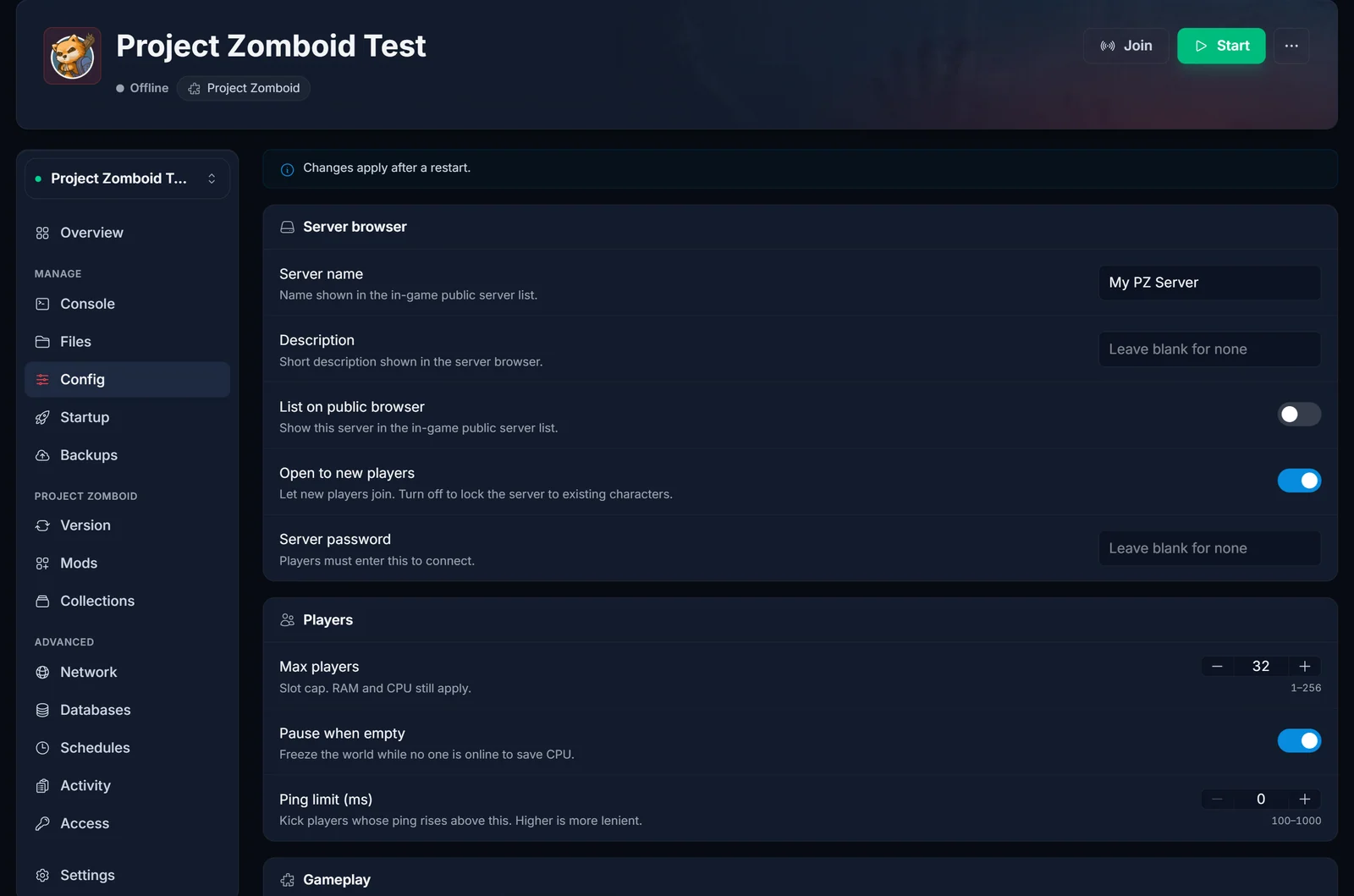
The Config tab covers the server browser entry, max players, ping limit, PvP and the safety system, global chat and factions. Anything beyond that lives in the files below.
The two files, and where they live
Everything else is in one folder:
/home/container/.cache/Server/
In the File Manager that is .cache, then Server. You will find four files there:
| File | Controls |
|---|---|
Pterodactyl.ini |
The server: slots, ports, password, PvP, the mod list, safehouse rules, backups |
Pterodactyl_SandboxVars.lua |
The world: zombie count and speed, loot rarity, day length, when power and water cut out |
Pterodactyl_spawnpoints.lua |
Custom spawn coordinates, rarely edited |
Pterodactyl_spawnregions.lua |
Which map regions players can spawn in, edited when you add a map mod |
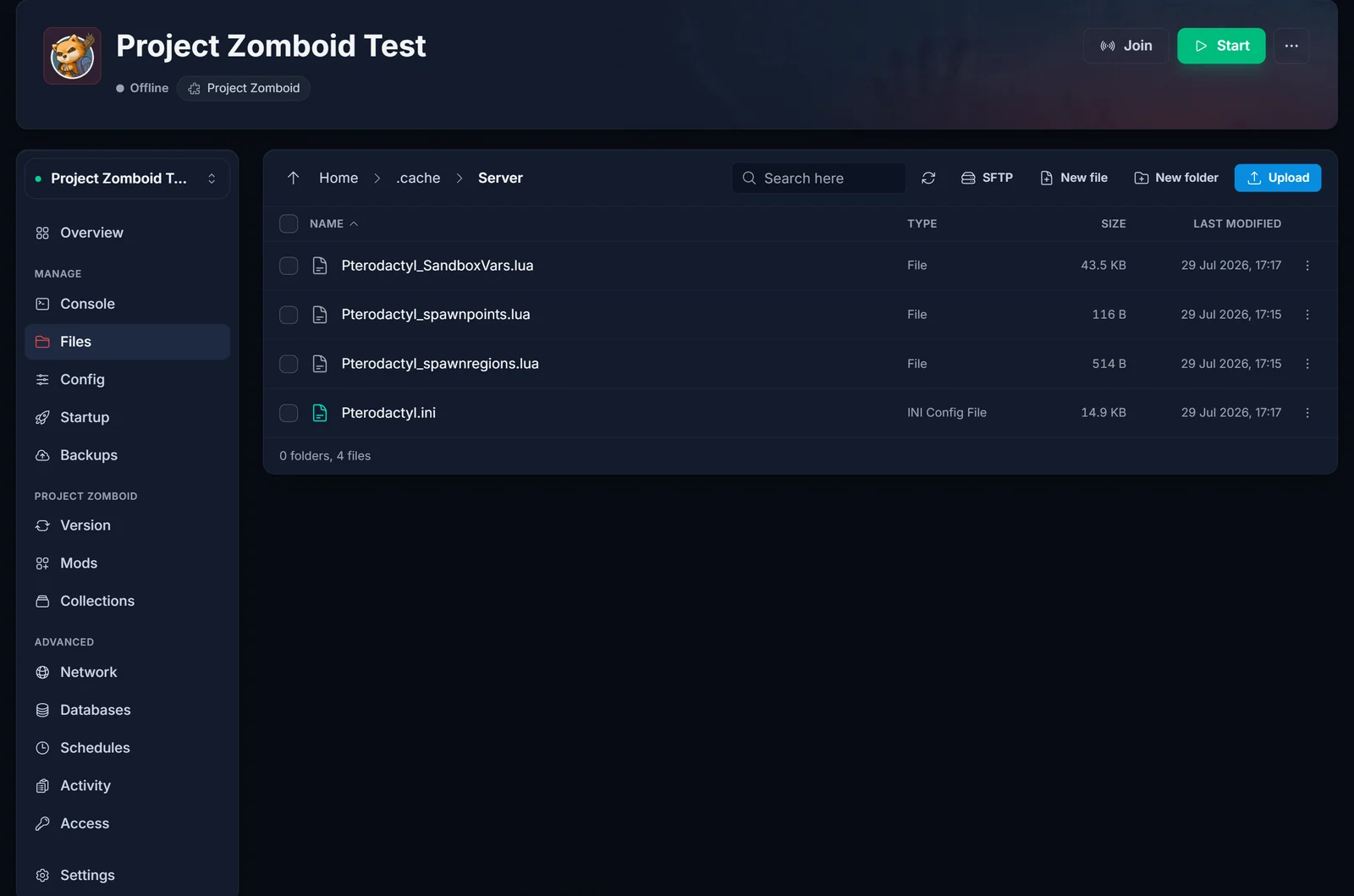
The filename rule, and why your upload was ignored
Your server starts with -servername Pterodactyl, so it only ever reads files that begin with Pterodactyl. It does not scan the folder for any .ini it can find.
This is the single most common failure. Our config generator defaults its server name to servertest, which is the vanilla default, so the files you download are called servertest.ini and servertest_SandboxVars.lua. Upload those and the server ignores them completely, then writes a fresh set of Pterodactyl defaults on the next boot. It looks exactly like the server deleted your work and put the standard files back.
Two ways to fix it:
- Set the generator's Server name field to
Pterodactylbefore you download. This is the easy one. The filenames then match and nothing else has to change. - Or change
SERVER_NAMEon the Startup tab to match the files you already downloaded. Letters and numbers only, no spaces and no dashes. Stop the server, change it, then start it once so it creates the folder under the new name.
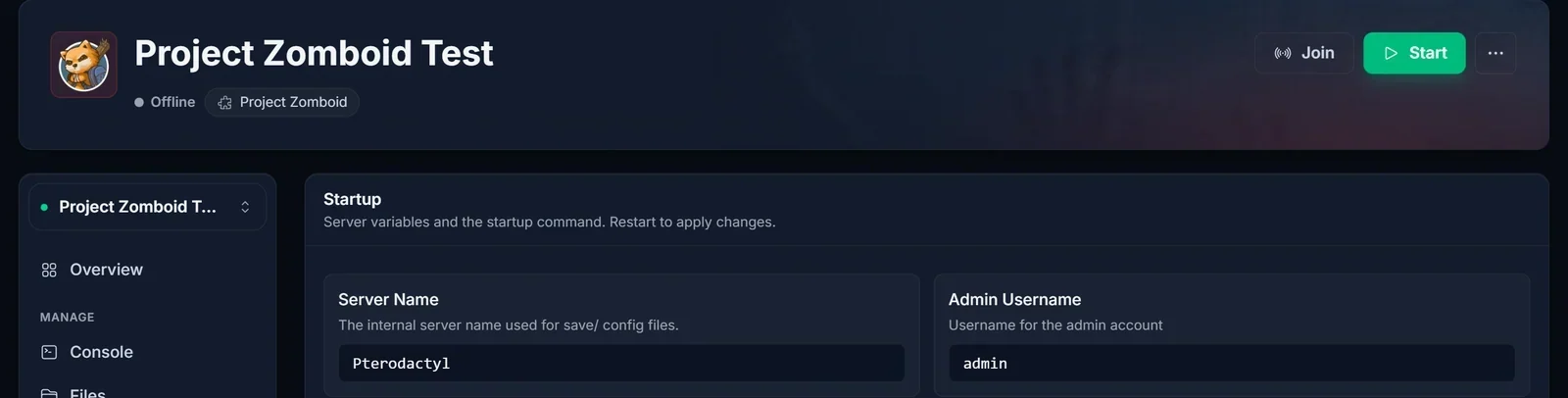
One thing that trips people up: SERVER_NAME is only the name of the config set. The name players see in the in-game server browser is PublicName in the .ini, which is the Server name field on the Config tab. They do not have to match.
Route 2: edit a file in place
- Stop the server completely. Wait until the status reads Offline, not Stopping.
- Open Files, then
.cache, thenServer. - Click the file name to open the built-in editor.
- Find the key with Ctrl+F. Change only the value after the
=, and leave the key and the trailing comma alone. - Save, then start the server.
The Lua file needs Lua syntax, so Speed = 2, and never Speed = "Fast Shamblers". If you want to know what each key does before you touch it, we list them all in Project Zomboid Sandbox Settings Explained.
Route 3: generate both files and upload them
Best when you are setting up a server from scratch and want a full playstyle rather than a few tweaks.

- Open the Project Zomboid Server Config Generator.
- Leave the game build on Build 42, the current stable build. Only switch it to Build 41 if your server is deliberately pinned to the old legacy41 branch.
- Set Server name to
Pterodactyl, or to whatever yourSERVER_NAMEstartup variable says. - Load a playstyle preset, then adjust anything you want.
- Download both files.
- Stop your server and wait for Offline.
- In Files, go to
.cache/Server, upload both files and confirm the overwrite. - Start the server and check the console for a clean boot.
Take a backup before you overwrite anything. The panel's Backups tab does it in one click, and our backup guide covers restoring if you need to roll back.
Why your changes keep reverting
A running server holds every setting in memory and writes both files back out when it shuts down. If you edit or upload while it is running, your version is overwritten by the server's version a few seconds later. Always stop the server fully first. This one cause explains most reverted-config tickets we see.
The other three causes, in order of how often they happen:
- The filenames do not match
SERVER_NAME. Covered above. The server ignores the file and regenerates its own. - Wrong build schema. Build 42 files carry
VERSION = 6. A file generated for the old Build 41 loses every setting that moved or changed type, so leave the generator on Build 42 unless you know your server is pinned to legacy41. - Broken Lua. A missing comma or a stray quote makes the file unreadable, so the server discards it and writes defaults. The console log names the line number, so read it before you re-upload.
Which settings apply to an existing world
Not everything takes effect on a world that already exists.
Applies immediately after a restart: everything in the .ini, all zombie behaviour (speed, strength, cognition, senses), population multipliers, loot respawn settings, and XP rates.
Baked in when the world was generated: the start date, month and time, how long it has been since the outbreak, map regions, and the loot already sitting in containers nobody has opened yet.
If you need to change something in the second group, you need a fresh world. Decide those settings before your players build anything.
Common issues
I cannot find the Server folder at all. It is created on the first successful boot. If the server crashed during startup, ran out of memory, or you reinstalled it, the folder is gone or was never made. Start the server, watch the console until it reports that the server is started, then stop it. The folder and all four files will be there.
I uploaded my files and nothing changed.
Either the server was running when you uploaded, or the filenames do not start with your SERVER_NAME. Check both. The file timestamps in the File Manager tell you which one it was: if they changed on their own after you uploaded, the server rewrote them.
The server will not start after I edited the file. Almost always a syntax error. Open the console, find the line number in the error, and fix it. If you cannot spot it, delete the file and start the server once. It regenerates a clean default you can edit again.
Can I change settings without restarting? Only a small set through admin commands, mostly PvP, max players and some chat options. Sandbox values are read at startup and need a restart. Our server commands guide lists what works live.
Do mods add their own settings?
Yes. Mods that register sandbox options append their keys to the bottom of SandboxVars.lua after the next server start, so install the mod first, then configure it. See how to install mods.
How much RAM does all this need? Higher zombie population and loot respawn both cost memory. Size it with our RAM calculator before you push the population multipliers up.
Running your server somewhere else and tired of hunting for these files? Our Project Zomboid server hosting puts the Config tab, the File Manager and one-click backups in the same place.
