
Setting up a Squad server takes about ten minutes on DoomHosting: your server is online the moment your order completes, and everything below happens in the game panel without touching a config file by hand. This guide covers naming and slots, admin setup with RCON, Workshop mods, and the map rotation.
Name your server and set the basics
Open your server in the panel and go to the Startup tab. Squad reads these settings on every boot, so whatever you set here survives restarts:
- Server Name: what players see in the in-game browser. Pick something searchable, players find servers by name.
- Max Players: up to 100. All slots are included in every DoomHosting plan, so this is a gameplay choice, not a billing one.
- Reserved Slots: seats held back for admins and regulars.
- Enforce Team Balance and Prevent Team Change If Unbalanced: the two settings that keep public rounds fair. Both default to on.
- Record Demos: keeps round replays on the server. Turn it off if you never review rounds and want to save disk space.
Restart the server after changing startup settings. The panel writes them into Server.cfg for you on boot.
Ports: already handled
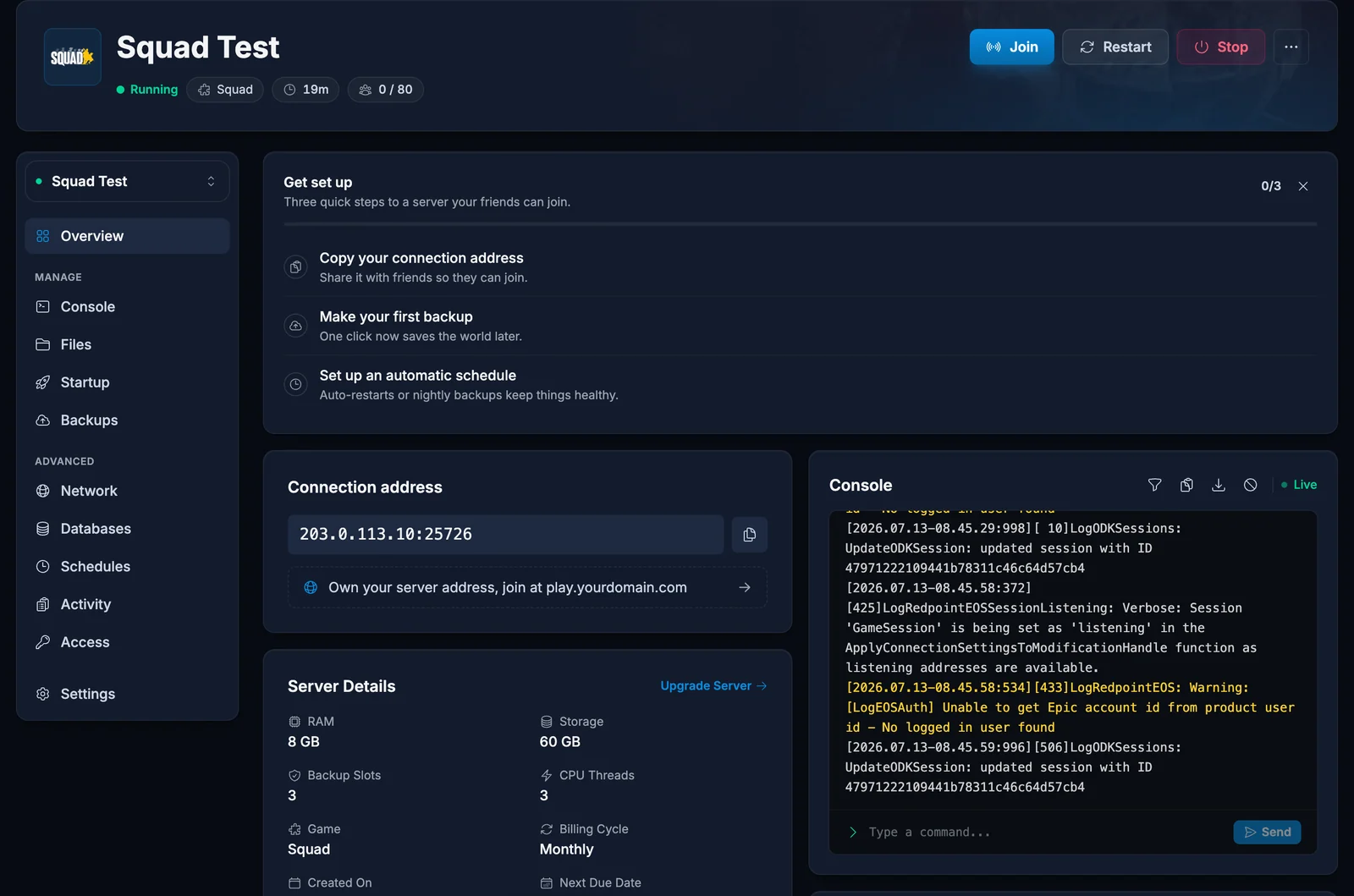
A Squad server needs five ports: the game port and its neighbor, a query port, a beacon port, and an RCON port. DoomHosting allocates and opens all of them automatically when your server is created. You can see them under the Network tab, and you never need to forward or configure anything.
Set up admins and RCON
Squad admin runs on two rails: the in-game admin list and RCON.
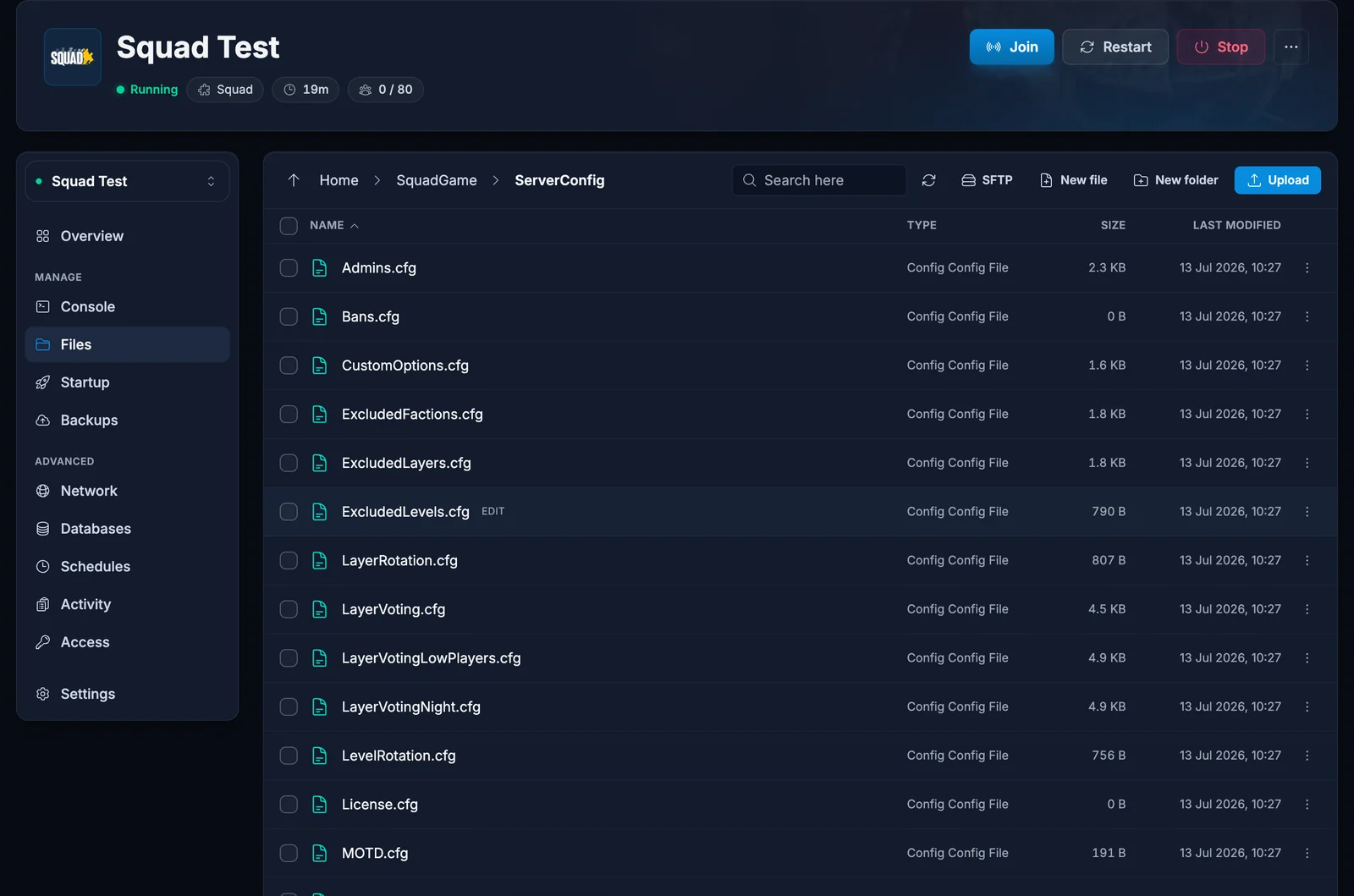
Admin list: open the Files tab and edit SquadGame/ServerConfig/Admins.cfg. Add one line per admin using their SteamID64:
Admin=76561198000000000:Admin
The role name after the colon must match a group defined at the top of the same file. The default file ships with a full Admin group you can use as-is.
RCON: set an RCON Password in the Startup tab and restart. Your RCON port is listed in the Network tab. With those two values you can connect BattleMetrics or any RCON client and run admin commands, broadcasts, and kicks from outside the game. Leaving the password empty keeps RCON switched off.
Install Workshop mods
Squad mods live on the Steam Workshop and download during installation, not while the server runs:
- Copy the item ID from the mod's Workshop URL (the number after
?id=). - Paste it into the Workshop Items field in the Startup tab. Separate several mods with commas.
- Run Reinstall from the Settings tab. The installer downloads the mods alongside the server files.
Players need the same mods installed to join a modded server, so list the mods in your server name or community Discord.
Change the map rotation
Edit SquadGame/ServerConfig/LayerRotation.cfg in the Files tab, one layer per line (for example Yehorivka_AAS_v1). The server plays the list top to bottom and loops. Voting-based rotation lives in LayerVoting.cfg in the same folder if you prefer players to pick. Layer names must match exactly; the Squad map layers list has every valid name.
About server licensing
Offworld Industries offers an optional license program for community servers. An unlicensed server (the default) works fully and appears in the server browser; licensed servers get whitelist perks from OWI but must run on approved providers and follow OWI rules. Most communities run unlicensed and that is fine.
Common issues
Server shows online but nobody can find it: the in-game browser filters aggressively. Search the exact server name and clear the map and region filters. New servers can take a few minutes to appear after first boot.
Changed a setting and it reverted: startup settings are written from the panel on every boot. Change them in the Startup tab, not by editing Server.cfg directly, or the panel writes the old value back on restart.
Mods not loading: confirm the item IDs are in Workshop Items and that you ran Reinstall afterward. Mods only download during installation.
Once your settings are in, share the server name with your community and check how players join your Squad server. If you run into anything, our support answers around the clock from your DoomHosting panel.
