
A Return to Moria dedicated server from DoomHosting runs the game's official Windows server and holds up to 8 dwarves at once. The three things most owners set first are the world name, a password and the difficulty, and all three live on the Startup tab. This guide covers those, the config file behind them, and who may build and open chests on your server.
Start the server and copy its address
Open the server in your DoomHosting panel and press Start. The Overview page shows the server state and the connection address, with a copy button next to it.
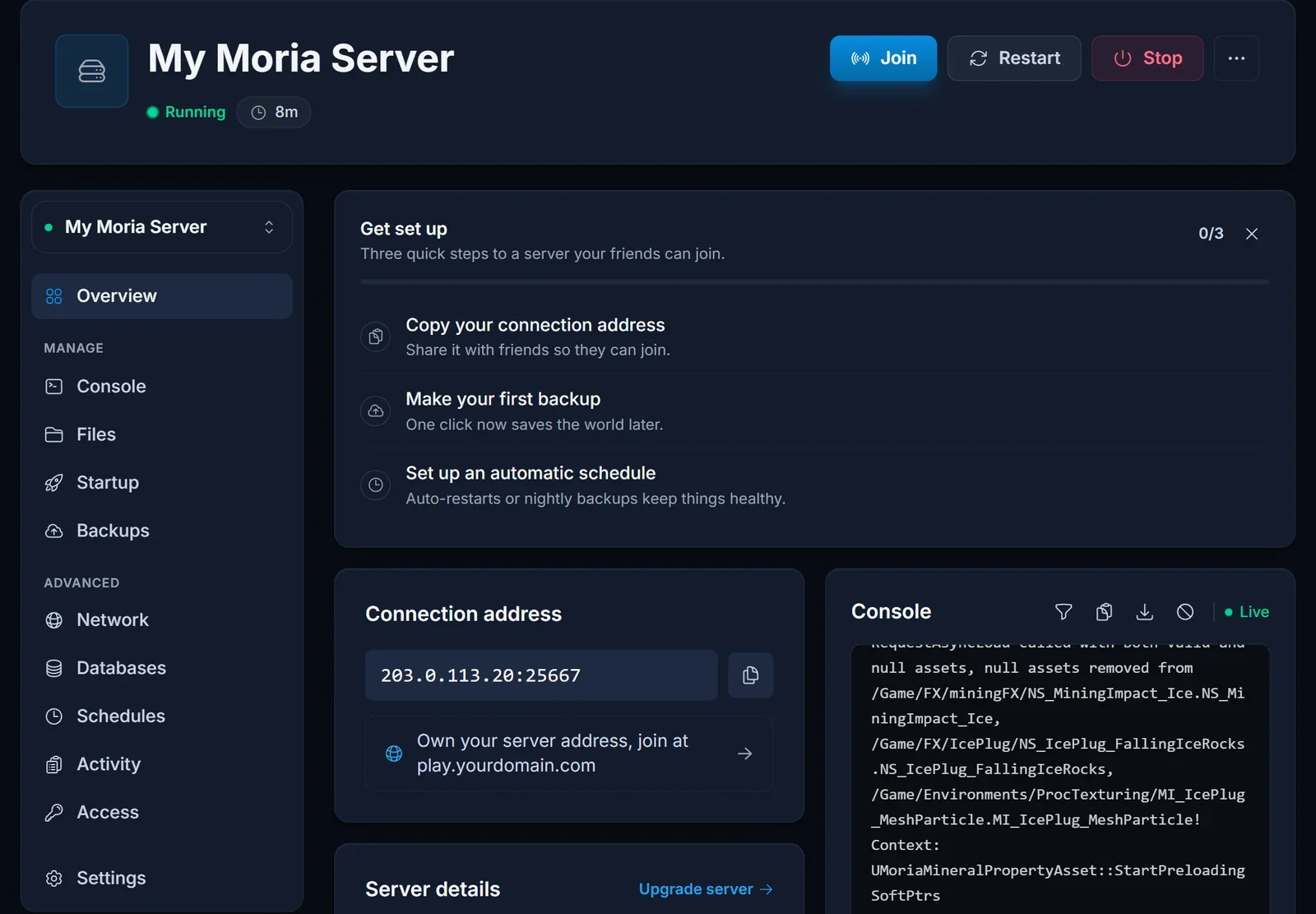
That address, IP and port together, is what players type into the game. Once it is running, send your players our guide on how to join a Return to Moria server.
World name, password and difficulty
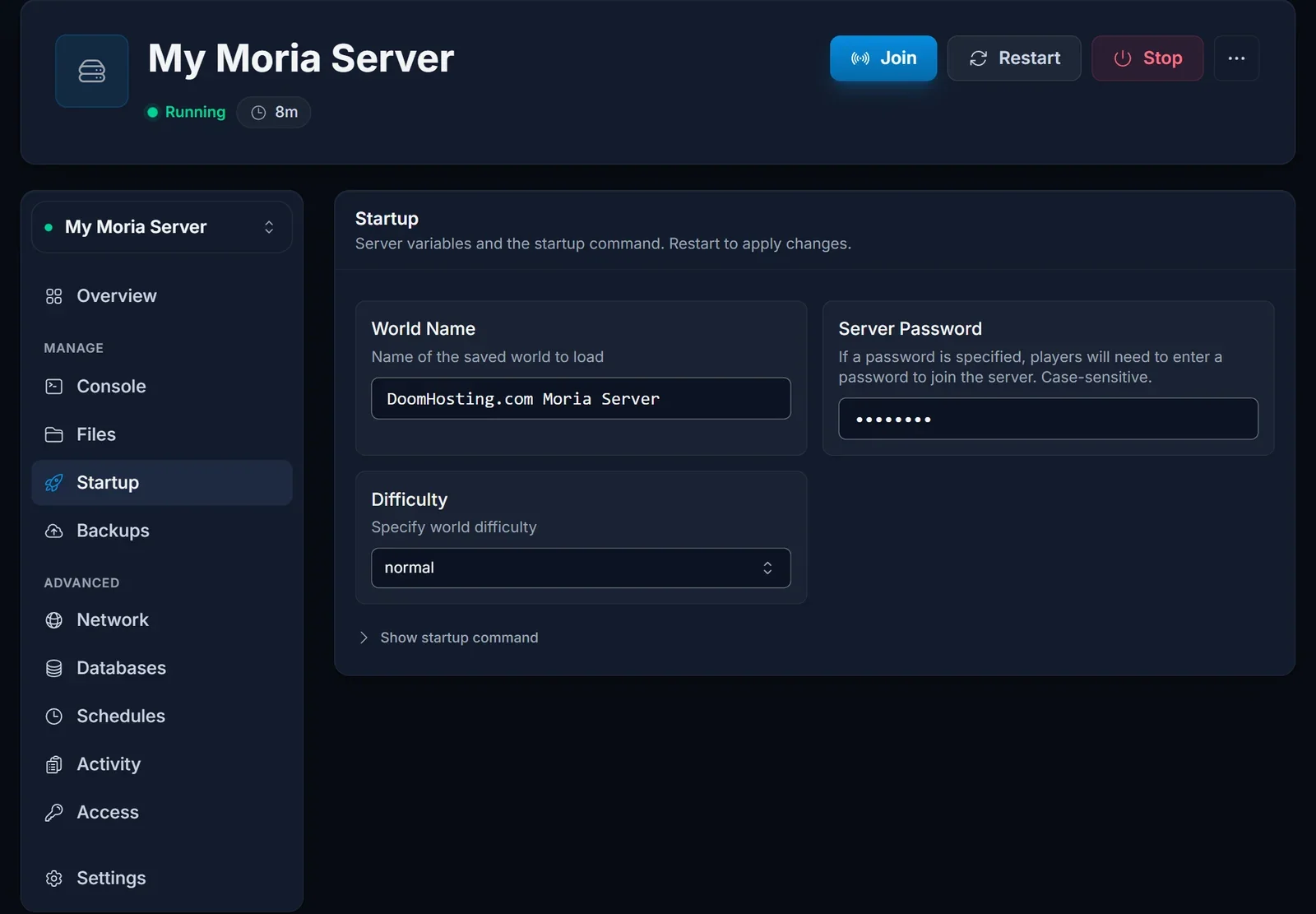
Open the Startup tab. These three fields decide which world the server loads and who can get in.
| Setting | What it does |
|---|---|
| World Name | the name of the world the server loads, or creates if it does not exist yet |
| Server Password | optional; when set, players have to enter it before they get in |
| Difficulty | the preset for a new world: story, solo, normal, hard or custom |
On every boot the panel writes these values into the game's config file, MoriaServerConfig.ini, together with the port your server listens on. That means you change them here and not in the file: an edit to those lines in the file is replaced the next time the server starts. Restart after changing a field.
Difficulty only applies to a new world
The difficulty preset is read when a world is created. Changing Difficulty on a server whose world already exists does nothing to that world.
To play on another preset, pick it in Difficulty, enter a new World Name and restart. The server creates a fresh world with the new preset on that boot. Leave World Name alone if you want to keep playing the world you have.
The rest of MoriaServerConfig.ini
Everything that is not on the Startup tab is set in /MoriaServerConfig.ini, which you open from the Files tab. The game reads it at boot, so stop the server before you edit it, save, then start it again.
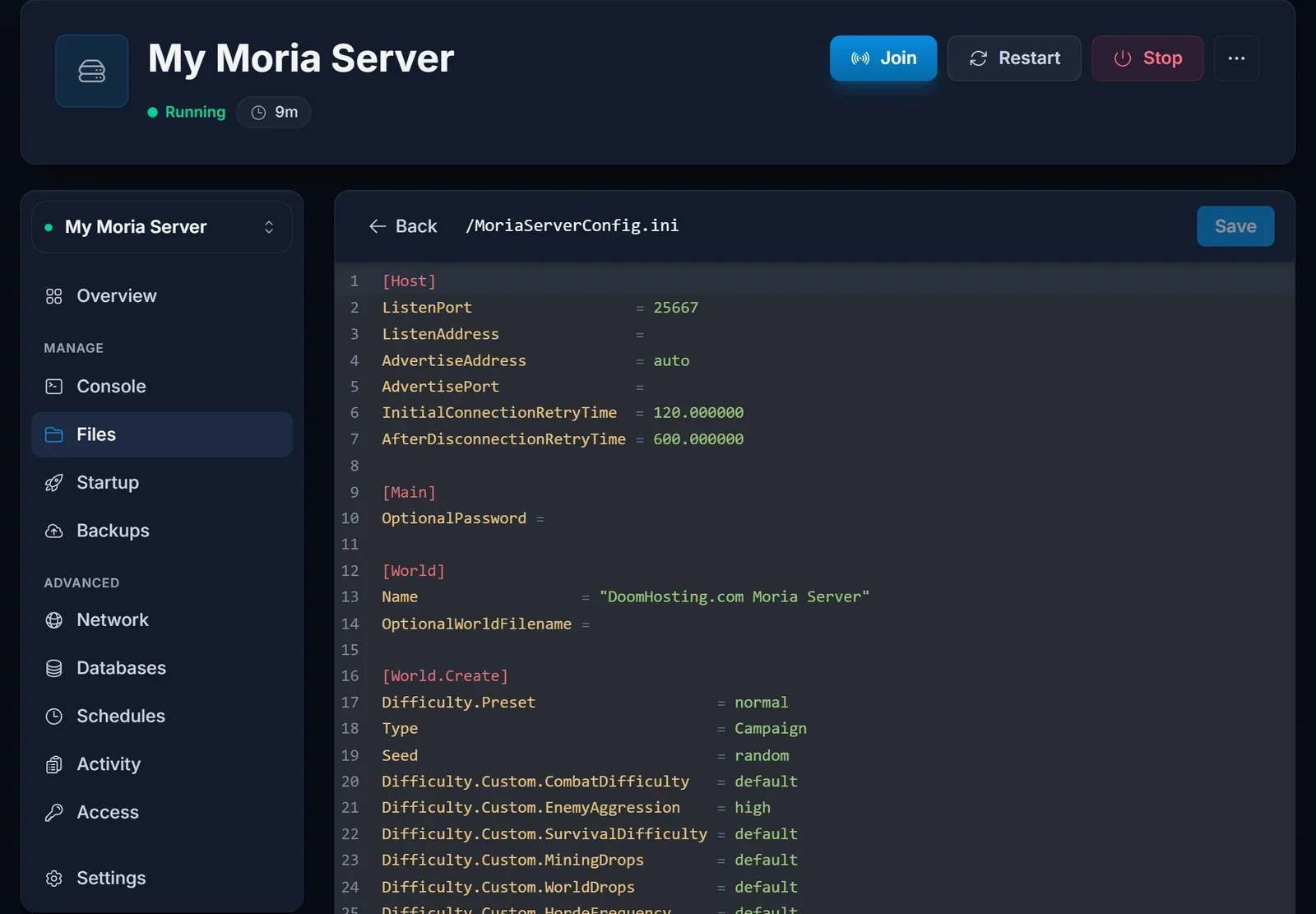
The sections you will see:
[Host]holdsListenPortand the advertise settings. The port is set by the panel on every boot, so leave it.[Main]holdsOptionalPassword, which the panel fills from Server Password.[World]holdsName, which the panel fills from World Name.[World.Create]is only used when a new world is made.Typeis the world type,Campaignby default,Seedisrandomunless you enter your own, and theDifficulty.Custom.*lines fine-tune combat, enemy aggression, survival, mining drops, world drops and horde frequency when the preset iscustom.[Performance]holds values such asServerFPS=60andLoadedAreaLimit=12. Leave these at their defaults unless you have a specific reason to change them.
For a custom world, set Difficulty on the Startup tab to custom, stop the server, adjust the Difficulty.Custom.* lines, set a new World Name and start it. The new world is created with your values.
Control who can build and open storage
/MoriaServerPermissions.txt sets what each player may do. The comment block at the top of the file explains every option.
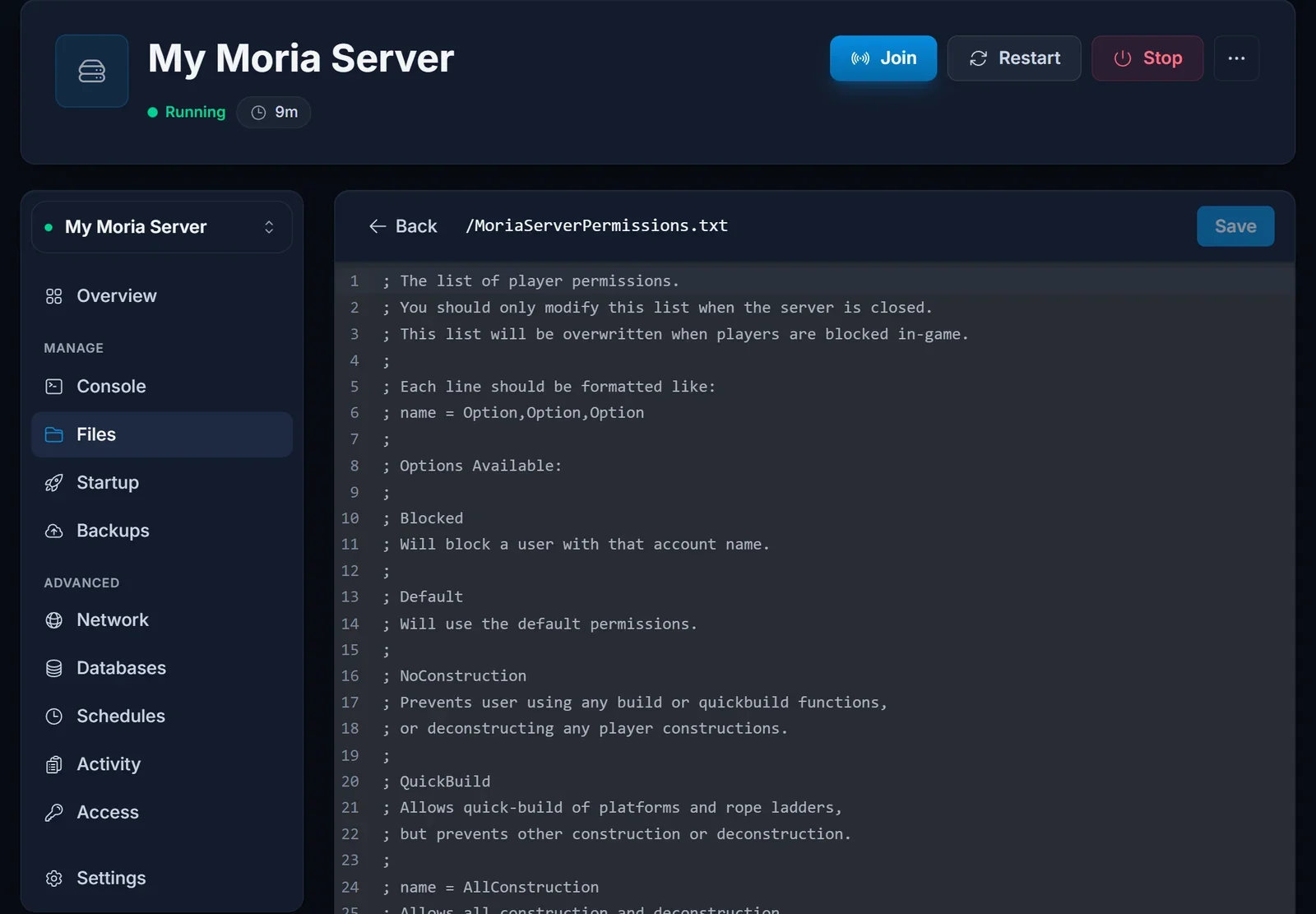
Each line is a player's account name, an equals sign and a comma-separated list of options:
Thorin = AllConstruction,AllStorage
Nori = QuickBuild,NoStorage
Grimbold = Blocked
| Option | Effect |
|---|---|
Default |
the default permissions |
Blocked |
blocks the player with that account name |
NoConstruction |
no building, quick-building or taking down player constructions |
QuickBuild |
quick-build platforms and rope ladders only |
AllConstruction |
every construction and deconstruction action |
NoStorage |
no access to storage |
AllStorage |
access to all storage |
Edit this file only while the server is stopped. The game rewrites it when a player is blocked in-game, so a change saved while it runs can be lost.
Where saves and logs are
The world is saved as an MW_<id>.sav file in /Moria/Saved/SaveGamesDedicated/. Download that folder from the Files tab when you want your own copy, or use the Backups tab for a copy you can restore from the panel.
The server log is /Moria/Saved/Logs/Moria.log, and it is the same log the Console tab streams.
Common issues
The console is full of "Couldn't find ground floor" errors. Lines like LogMoriaWorldGen: Error: Couldn't find ground floor for bubble ... appear on every boot. They come from the game's world generation, they are harmless, and the server runs normally with them.
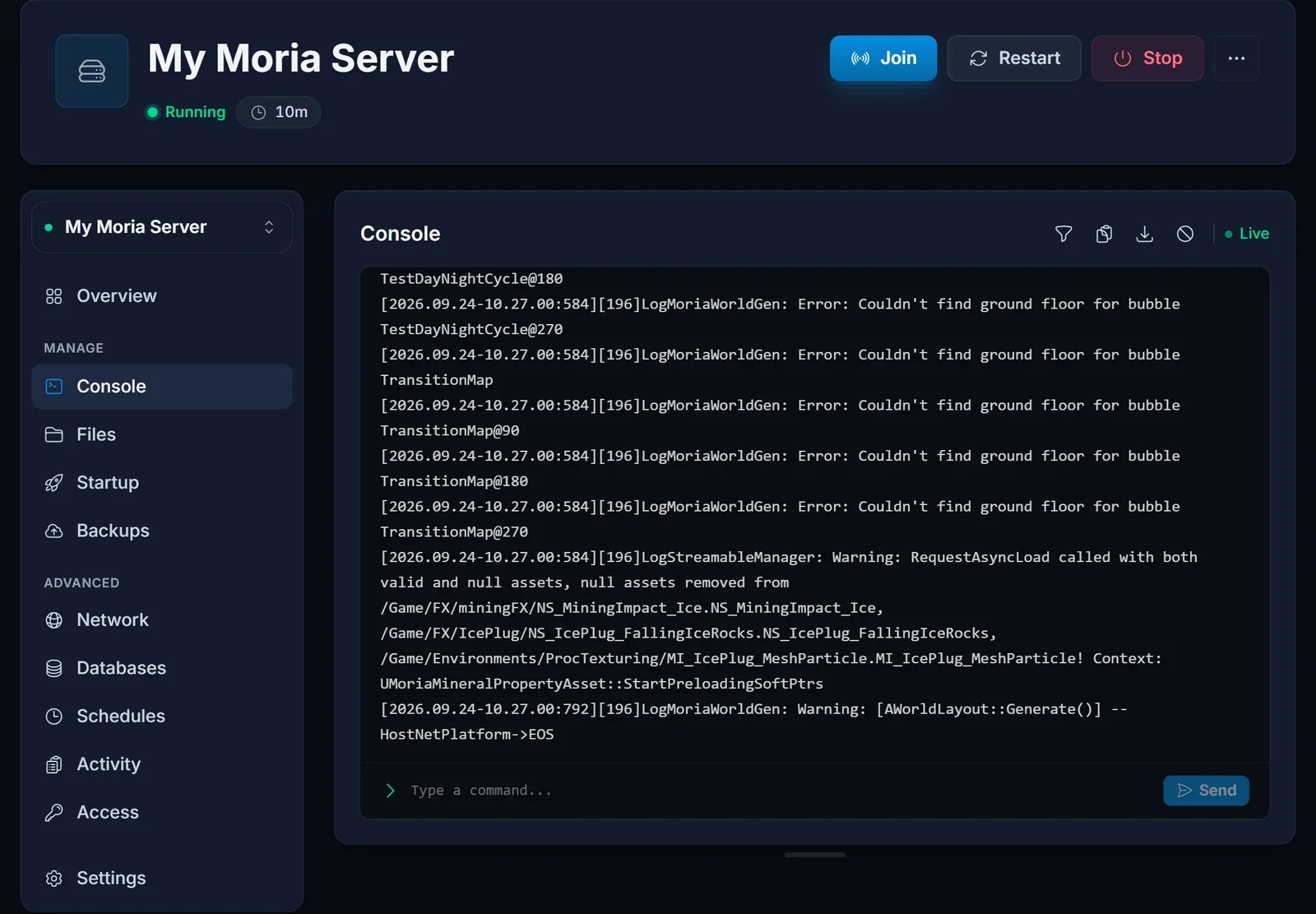
Typing in the console does nothing. That is expected. Console input does not reach the Return to Moria server, so manage it through the Startup tab and the two config files.
My password or world name went back. You edited it in MoriaServerConfig.ini. The panel writes those lines from the Startup tab on every boot, so change them there.
The difficulty did not change. The world already existed. Difficulty only applies when a world is created, so use a new World Name.
My permission changes disappeared. The file was edited while the server was running. Stop the server, edit it again and start it.
Players get a version error. Restart the server: it updates itself through SteamCMD on every boot. Players should update their game in Steam or the Epic Games Store too.
Next steps
Send your players How to Join a Return to Moria Server. Plans and hardware are on our Return to Moria server hosting page, and the DoomHosting game panel page shows what else the panel can do.
