

Your Don't Starve Together server needs two things before anyone can play on it: a Klei cluster token, without which nobody can join it, and a server name your friends can actually find in the in-game browser. This guide covers both, then the settings most people change on day one.
Add your Klei cluster token
A cluster token is a free code that ties your server to a Klei account. Every online Don't Starve Together server needs one, so this is the first thing to do.
What a missing token looks like is worth knowing, because it is not a crash. We tested it on our own server: with the placeholder token still in place, the server boots, both shards print Account Failed (6): "E_EXPIRED_TOKEN" and then Your Server Will Not Start, and the process sits there idling. The panel keeps reporting the server as running the whole time, and nobody can join it. So a server that looks healthy and still lets nobody in is a token problem until proven otherwise.
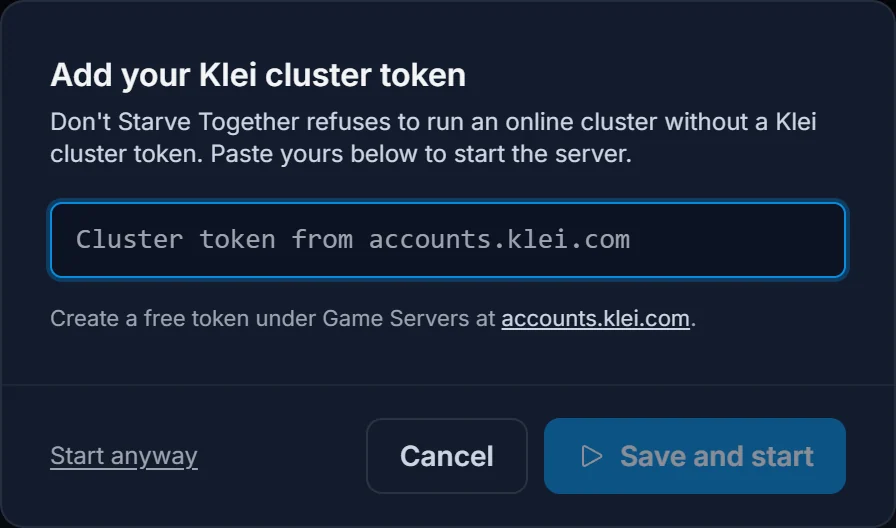
That is why the panel asks for the token up front. Press Start on a server whose token is still the placeholder and a dialog called Add your Klei cluster token opens instead of a boot. Paste the token, press Save and start, and the server starts with it in place.
Get a token either way:
- On the web: sign in at accounts.klei.com, open Game Servers, and generate a server token for Don't Starve Together.
- In game: open the console at the main menu with the tilde key and run:
TheNet:GenerateClusterToken()
That writes a cluster_token.txt file into your local Klei folder. Open it and copy the whole line exactly as it is, with nothing added or trimmed.
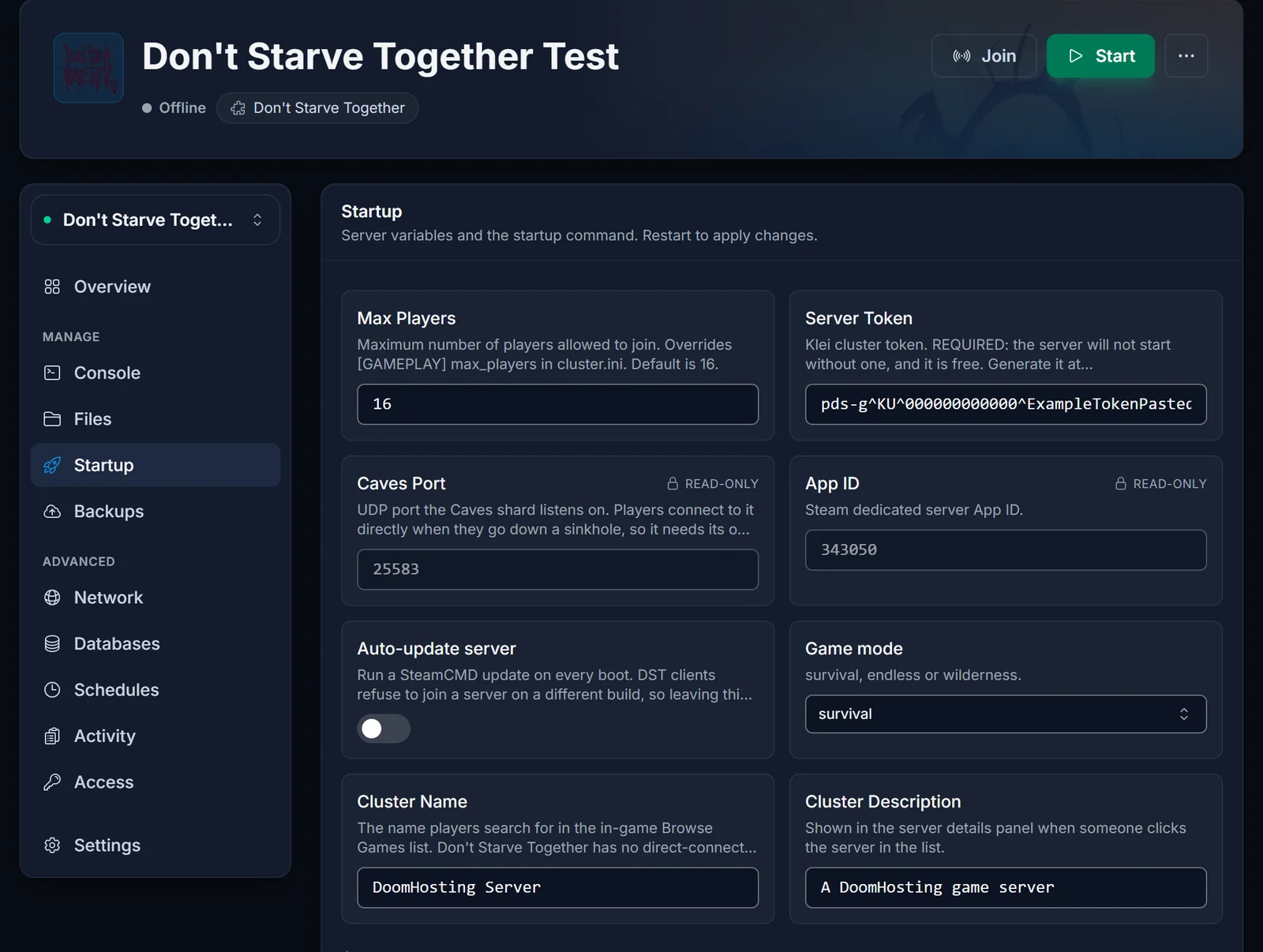
The token also lives in the Server Token field on the Startup tab, so you can paste it or replace it there at any time and restart the server.
Name your server so people can find it
Don't Starve Together has no direct-connect address box in its menus. Players find servers by searching the name in Browse Games, which makes the server name the single most important setting you will touch.
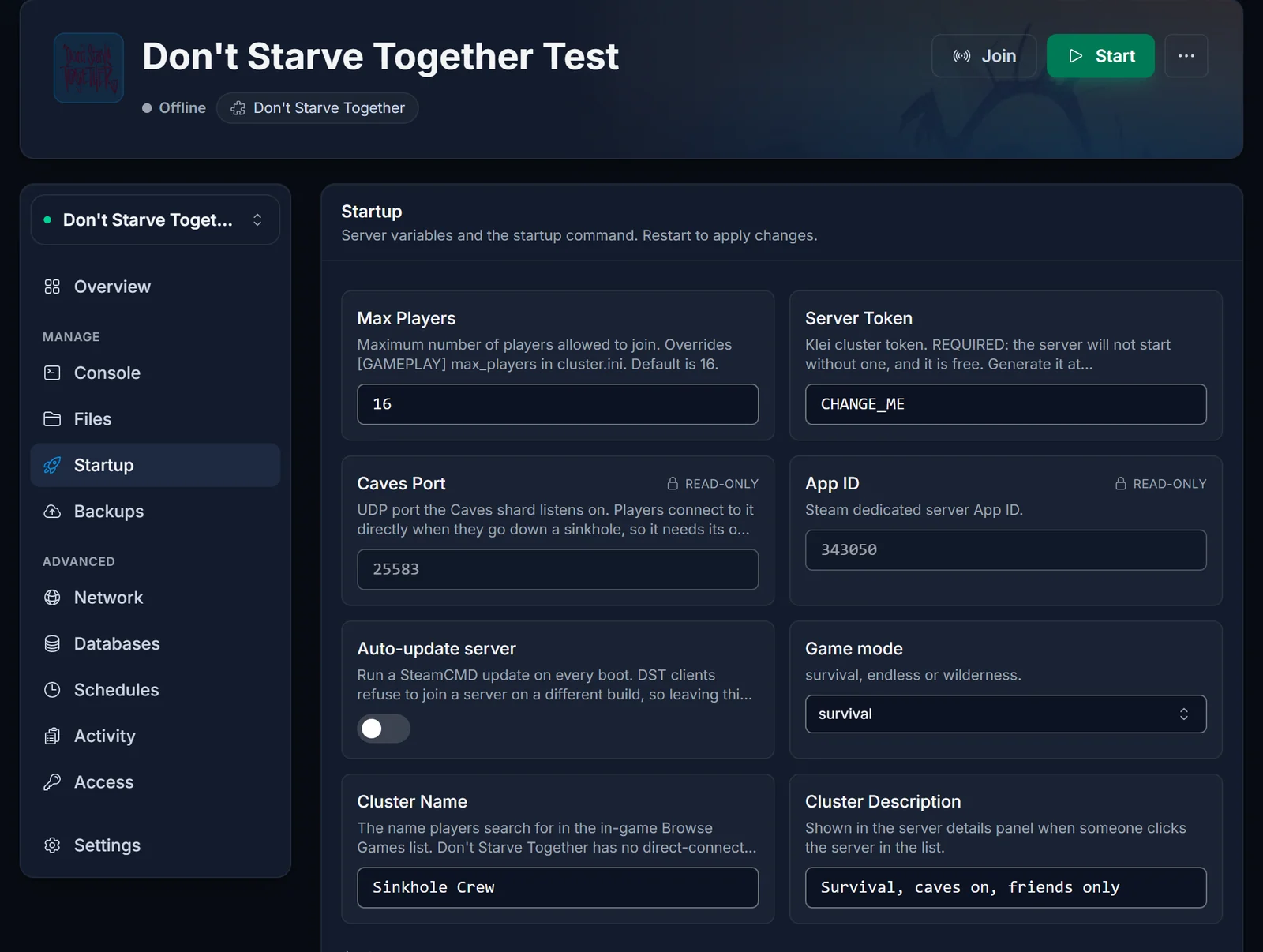
Change Cluster Name on the Startup tab to something specific to your group. Leaving it on the default means your friends search for it and get a page of other people's servers with the same name. Cluster Description is the line shown when someone clicks your server in the list.
If you want the server private, set a cluster password. Anyone without it is refused at the door, and the server still appears in the browser.
Pick the game mode and player limit
Game Mode takes exactly three values:
survivalis the default. Players who die become ghosts and need reviving, and the world keeps its seasons running.endlessis forgiving. Ghosts can resurrect themselves at the portal and nothing is permanently lost.wildernessdrops everyone in at a random spot with no shared base and no resurrection.
Max Players sets the slot count. New servers ship at 16, which suits almost any group. Raising it costs memory, because your cluster holds two worlds in memory at once.
About the Caves
Your server runs two shards: the surface world, and the Caves. Both start together and stay linked, so walking into a sinkhole moves you into the cave world instead of bouncing you back to character select. You do not run, order or configure a second server for this.
Worth knowing: the two shards are separate worlds with separate day counts and separate world settings. A restart restarts both.
Install Steam Workshop mods
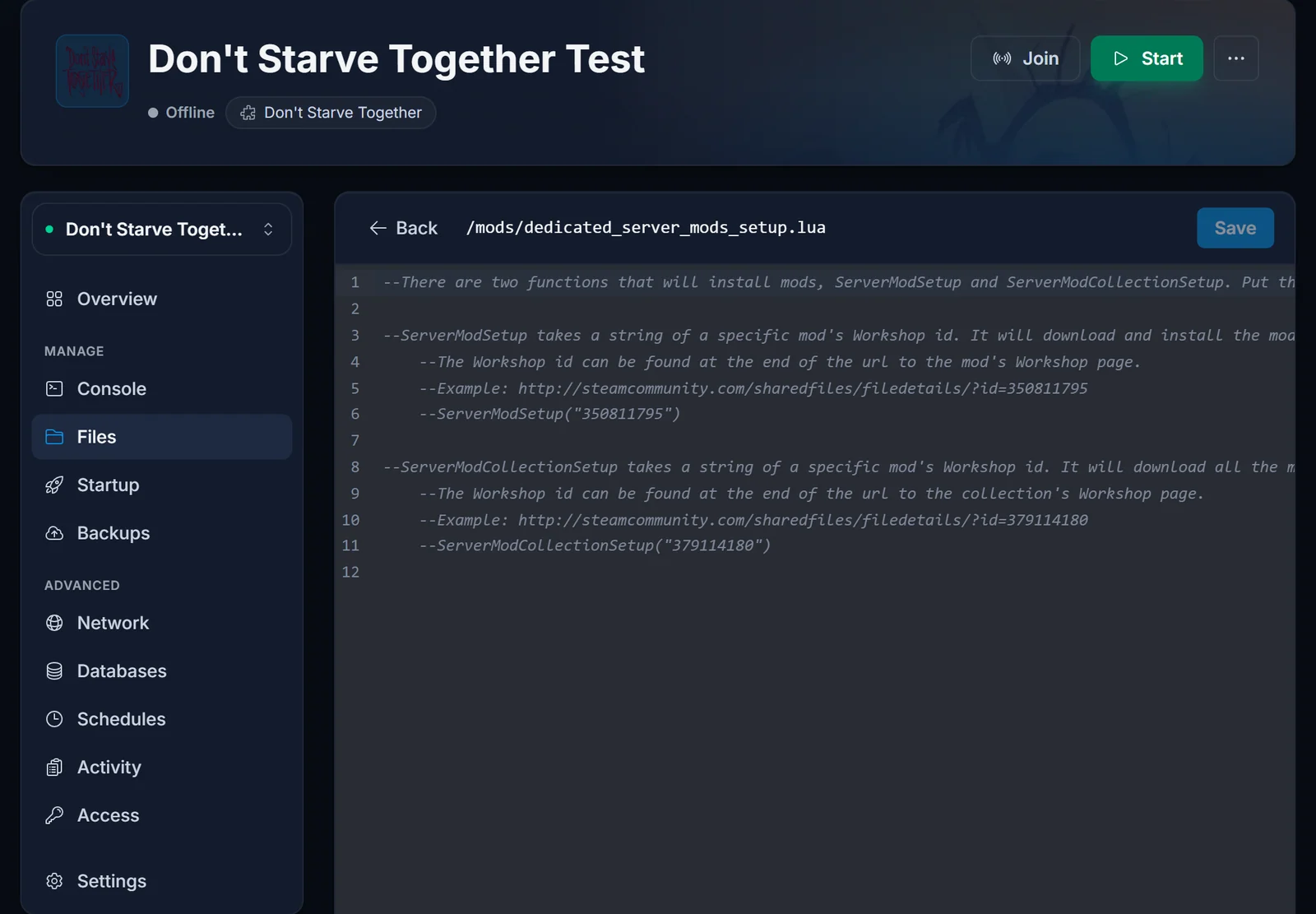
Don't Starve Together needs two files to run a mod, and forgetting the second one is the most common mistake people make. Stop the server first.
1. Tell the server to download the mod. Open mods/dedicated_server_mods_setup.lua and add one line per mod, using the Workshop ID from the mod's Steam URL:
ServerModSetup("378160973")
ServerModCollectionSetup("1234567890")
2. Tell the shards to enable it. Open modoverrides.lua in the Master shard folder and add the mod with the workshop- prefix:
return {
  ["workshop-378160973"] = { enabled = true },
}
If a mod should also run underground, copy the same file into the Caves shard folder. A mod that is downloaded but not listed in modoverrides.lua simply never loads.
Start the server and watch the console. The mod downloads on the first boot after you add it, so give it a moment.
Change the world settings
World generation options such as world size, season length and resource frequency live in worldgenoverride.lua, one per shard. These only apply to a world that has not been generated yet. Editing them on a world you have already played changes nothing.
To apply new world settings you have to regenerate the world, which deletes it. Download a backup of your save folder first if you care about it.
Common issues
The panel says the server is running, but nobody can join. Almost always the cluster token. Open the Console tab and look for Account Failed (6) and Your Server Will Not Start from either shard. The process keeps running after that, which is why the panel still shows it as up. Re-copy the token, making sure no extra spaces or line breaks came with it, and restart.
My friends cannot find the server. The name is probably still the default, so the search results are full of other servers. Rename it to something distinctive. If they still cannot see it, have them connect directly, which is covered in how to join a Don't Starve Together server.
I fall back to character select when I enter a sinkhole. That is the Caves shard failing to accept the handover. Restart the server and check the console for errors from the Caves shard as it starts.
My mod downloaded but does nothing. It is missing from modoverrides.lua, or you added it to the Master shard only and expected it to work in the caves. Both files are required.
My world settings did not change. worldgenoverride.lua only affects world generation. An existing world keeps the settings it was born with.
Everything above is available on any Don't Starve Together server from us, and the tabs referenced here are part of the game control panel that comes with every server.
