

Your Astroneer server is deployed and running the moment you order. There are two things to set before you and your friends can play, and both take about a minute.
Step 1: Set Yourself as Admin
Astroneer decides who is administrator by Steam account, not by a password. Until you fill this in, the server has no admin at all: nobody can kick, ban, or manage players.
On your server's Overview page, find the Server admin card under the connection address.
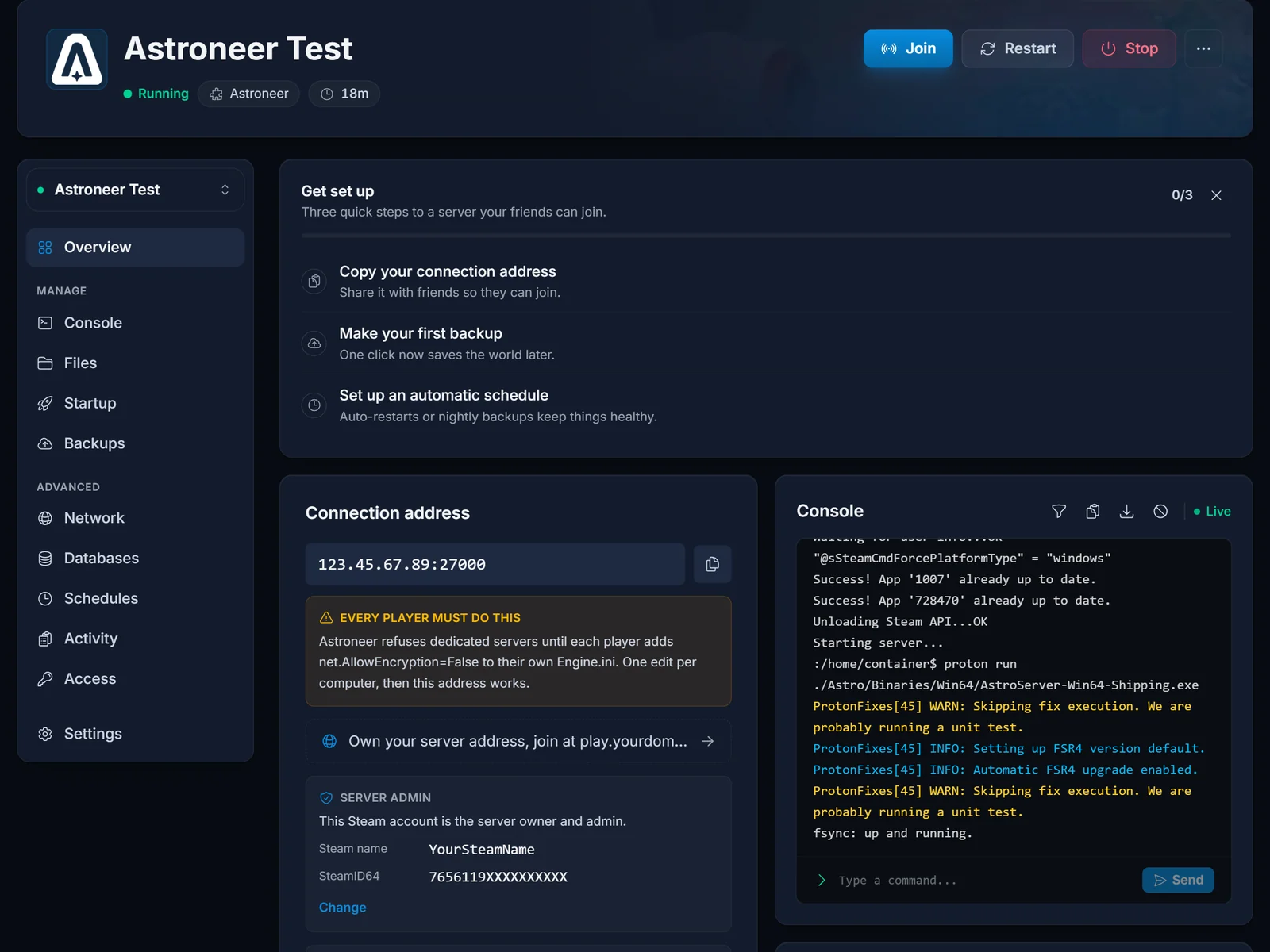
Click Set admin and enter two things:
- Steam name: your Steam username, exactly as it appears on your profile.
- SteamID64: your 17-digit Steam ID, which always starts with
7656119.
If you do not know your SteamID64, our guide to finding your SteamID64 walks through it in the Steam client. Save, then restart the server so it picks the change up.
A typo in either field leaves the server without an admin, so it is worth a second look before you restart.
Step 2: Tell Everyone About the Encryption Setting
Astroneer will not connect to a dedicated server until each player disables client encryption in their own Engine.ini. That includes you. We set the matching option on the server automatically, but the client half is per-computer and manual.
The full walkthrough is in how to join an Astroneer server. Send it to your friends along with the address.
Optional: Set a Join Password
By default anyone with your address can connect. To lock it down, use the Server password field on the Overview page.
Astroneer's password field accepts letters, numbers, dashes and underscores only. Spaces and punctuation are rejected, so my server 2026 will not save but my-server-2026 will.
Changing Server Settings
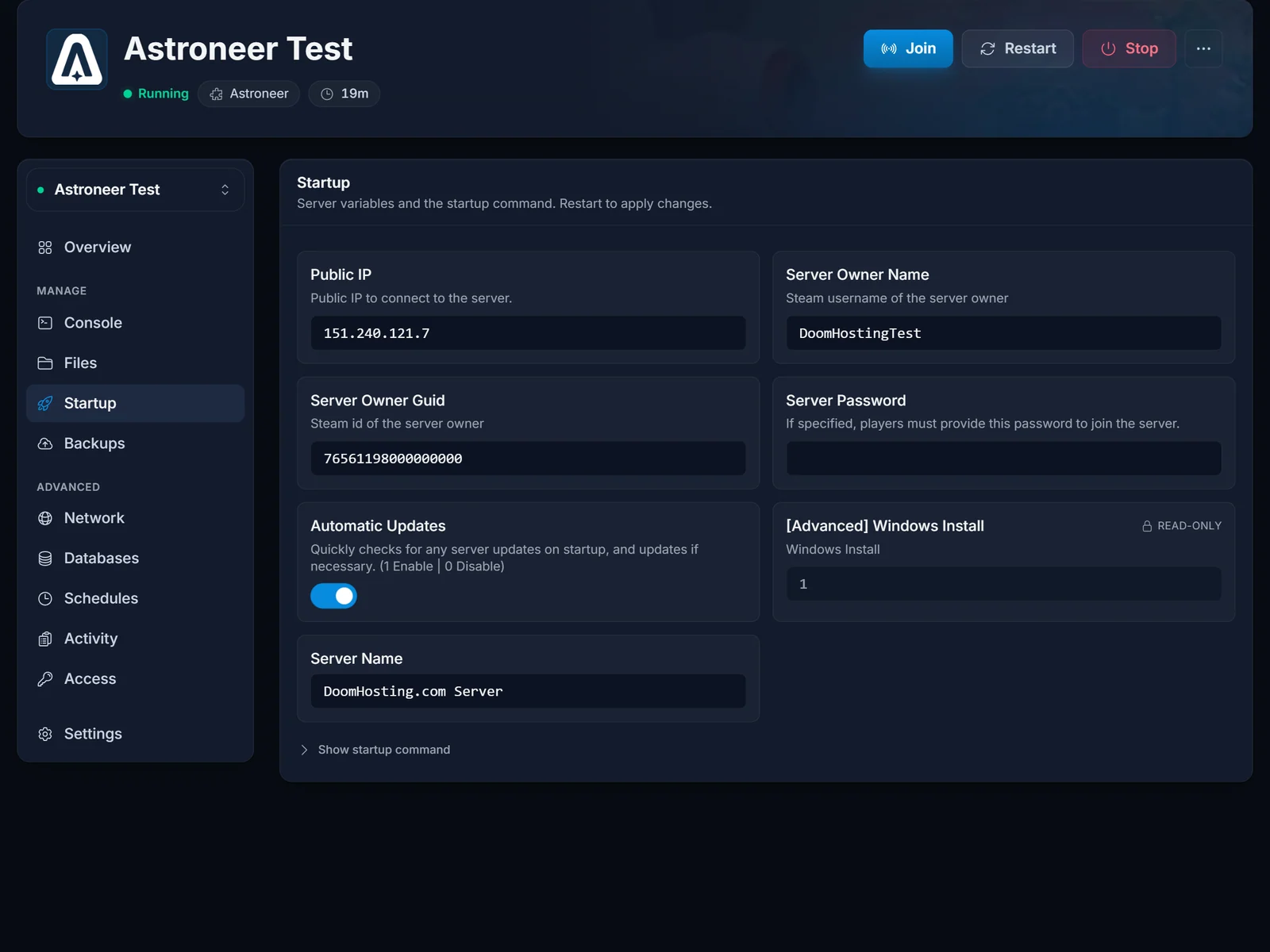
The Startup tab holds the settings the server reads at boot: the server name shown to players, the join password, and whether automatic updates run.
Deeper options live in Astro/Saved/Config/WindowsServer/AstroServerSettings.ini, reachable through the Files tab. The ones people change most:
AutoSaveGameInterval: seconds between autosaves,900by default.BackupSaveGamesInterval: seconds between save backups,7200by default.MaxServerFramerate: server tick rate,30by default.
Stop the server before editing that file. Astroneer rewrites it on shutdown, so an edit made while it is running gets overwritten.
Saves and Backups
Your world lives in Astro/Saved/SaveGames. You can download it from the Files tab at any time, and upload an existing .savegame file into the same folder to bring a solo world onto the server.
Your plan also includes automatic backups on the Backups tab, which capture the whole server rather than just the save.
Good to Know
- 8 players maximum. That is a hard limit in Astroneer, not something a bigger plan changes.
- First boot takes a few minutes. The server runs through Proton, so give it up to ten minutes to reach Running the first time.
- The world keeps running while you are offline, which is the main reason to rent a server rather than host from a PC.
