
ARK is one of the few games where joining your own server trips people up, and it is almost always the same reason: Steam finds ARK servers by the query port, not the game port your server actually runs on. Put in the wrong number and the server simply never shows up, even though it is running fine. This guide covers the two reliable ways to connect, where to find the exact address in your DoomHosting panel, and what to do when the server will not appear.
The One Thing That Confuses Everyone: Two Ports
Your ARK server uses two different ports, and which one you need depends on how you connect:
- Query port (often 27015): this is what Steam's server browser and your Favorites list use to find the server. If you join through Steam, this is the number you need.
- Game port (often 7777): this is what the in-game console
opencommand uses, and what Epic Games players connect with.
Adding the game port to your Steam Favorites is the single most common mistake. Steam looks for a server on that port, finds nothing, and you swear the server is offline when it is running perfectly. There is also no steam:// quick-connect link for ARK, so you cannot click your way in. You add the address by hand once, then join from Favorites every time after.
Find Your Address in the Panel
Open your server in the DoomHosting control panel and look at the connection details on the main server page:
- The connection card shows your server IP and the game port.
- The Add to Steam favorites block shows the exact query address (your IP followed by the query port). Click the copy button next to it. This is the address you paste into Steam.
If you do not see the Add to Steam favorites block yet, give the server a moment to finish starting. The first boot can take a few minutes while ARK loads the map.
Method 1: Join Through Steam Favorites (Recommended)
This is the most reliable way to join an unofficial ARK server, and the one we recommend for everyone on the Steam version.
- Copy the query address from the Add to Steam favorites block in your panel. It looks like
123.45.67.89:27015. - In Steam, open View, then Game Servers (on some clients this is called Servers).
- Click the Favorites tab, then the + button to add a server.
- Paste the query address and click Add this address to favorites.
- Launch ARK: Survival Evolved.
- From the main menu choose Join ARK, then set the session filter at the top to Favorites.
- Your server appears in the list. Select it and click Join.
After the first time, your server stays in Favorites, so joining is just Join ARK, Favorites, click your server.
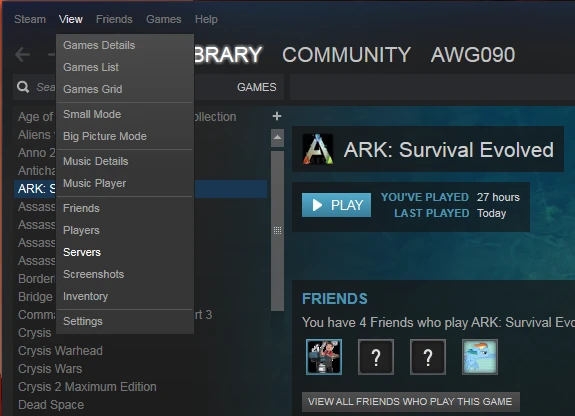 In Steam, open the View menu and choose Servers.
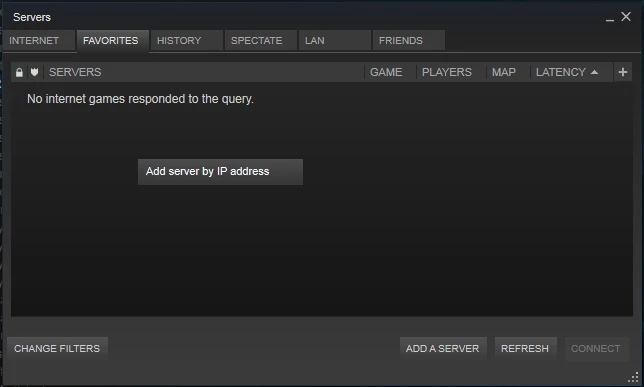 On the Favorites tab, click Add a Server. You can also right-click the empty space and choose Add server by IP address.
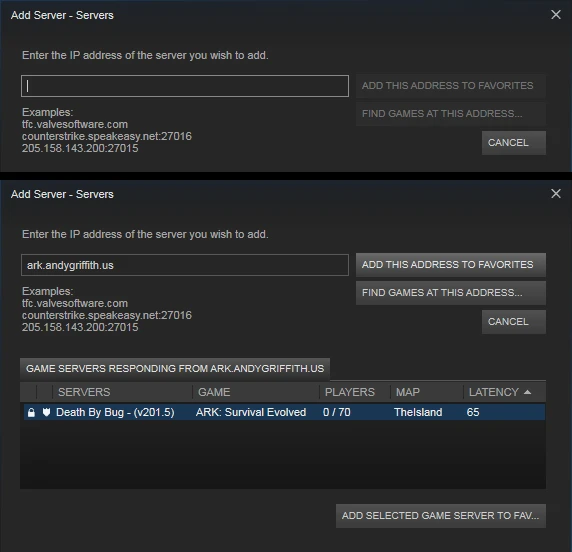 Paste your query address (IP and query port). Steam finds the ARK server, then click Add this address to favorites.
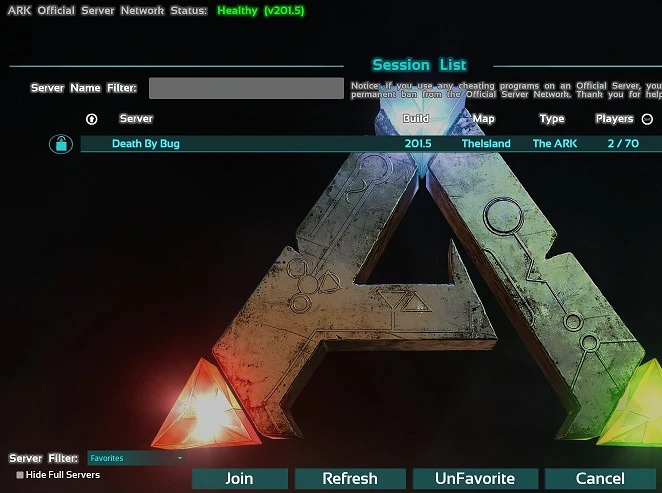 In ARK, choose Join ARK, set the Session Filter to Favorites, select your server, and click Join.
Method 2: Join With the In-Game Console (Game Port)
If you would rather connect directly, ARK has a console command. This one uses the game port, not the query port.
- Launch ARK and load into the main menu, or start a single-player session.
- Press the console key to open the command bar. On most setups this is Tab, and you may need to enable the console first under Options.
- Type
openfollowed by your IP and game port, then press Enter:
open 123.45.67.89:7777
- If your server has a join password, add it after the address:
open 123.45.67.89:7777 YourPassword
The game connects directly. The port here is the game port (the 7777-style number on your connection card), not the query port you used for Favorites.
Method 3: The Unofficial Server Browser
You can also search the public list, though it is the slowest option because thousands of unofficial servers load at once.
- From the main menu choose Join ARK.
- Set the session filter to Unofficial.
- Type your server name into the search box and wait for the list to filter.
- Select your server and click Join.
If it does not appear here, use the Favorites method above. The browser does not always list every server, especially right after a restart.
Playing on Epic Games?
Epic players connect with the game port, not the query port, and the Steam Favorites method does not apply. Use the in-game console command from Method 2 with the game port (open YourIP:7777), or join through the in-game session list with crossplay enabled. Your IP and game port are both on the connection card in your panel.
Server Not Showing Up?
Work through these in order. They cover almost every failed connection:
- You used the game port in Favorites. This is the big one. Steam Favorites needs the query port (the address from the Add to Steam favorites block), not the game port.
- The server is still booting. After a start or restart, ARK loads the full map before it answers queries. Give it a few minutes. You can confirm it is live with our ARK server status checker.
- Wrong session filter. In Join ARK, the filter has to be on Favorites (for Method 1) or Unofficial (for Method 3), not Official.
- Mod mismatch. If your server runs mods, your game downloads them before you can join. Subscribe to the same mods on the Steam Workshop, or let ARK pull them in on first connect.
- Crossplay or BattlEye. If you cannot see an Epic-hosted setup from Steam, check that crossplay is on. If you get kicked the moment you join, make sure BattlEye is not disabled on your client when the server expects it.
Common Questions
Why can I not find my server in Steam even though it is online?
Almost always because the game port was added to Favorites instead of the query port. Remove it, copy the query address from the Add to Steam favorites block in your panel, and add that instead.
What is the difference between the game port and the query port?
The game port carries the actual gameplay traffic and is what the console open command and Epic use. The query port is what Steam uses to look the server up in the browser and Favorites. ARK is unusual in that you connect through the query port on Steam, which is why this trips people up.
Does the steam:// quick-connect link work for ARK?
No. ARK does not support steam:// direct-connect links, so there is no one-click join. Add the server to Favorites once, then join from there.
Can my friends on Epic Games join my server?
Yes, with crossplay enabled. Epic players use the game port through the in-game console or the crossplay session list, not the Steam Favorites method.
Need a Hand?
Not hosting with us yet? See ARK: Survival Evolved server hosting. Already a customer and still stuck? Our support team is available 24/7 from your panel and can confirm your exact ports in a minute.
