

The fastest way onto a Team Fortress 2 server is to add its IP:PORT under Favourites in the game's server list, which works whether or not the server is publicly listed. If you would rather type one line, open the developer console and use connect IP:PORT.
Both routes need the same thing first: the server's address. If it is your server, copy it from the panel. If it is someone else's, ask them for it in IP:PORT form.
Get the address from the panel
Open your server at /panel. The Overview tab shows the connect address with a copy button beside it. That single IP:PORT string is everything a player needs.
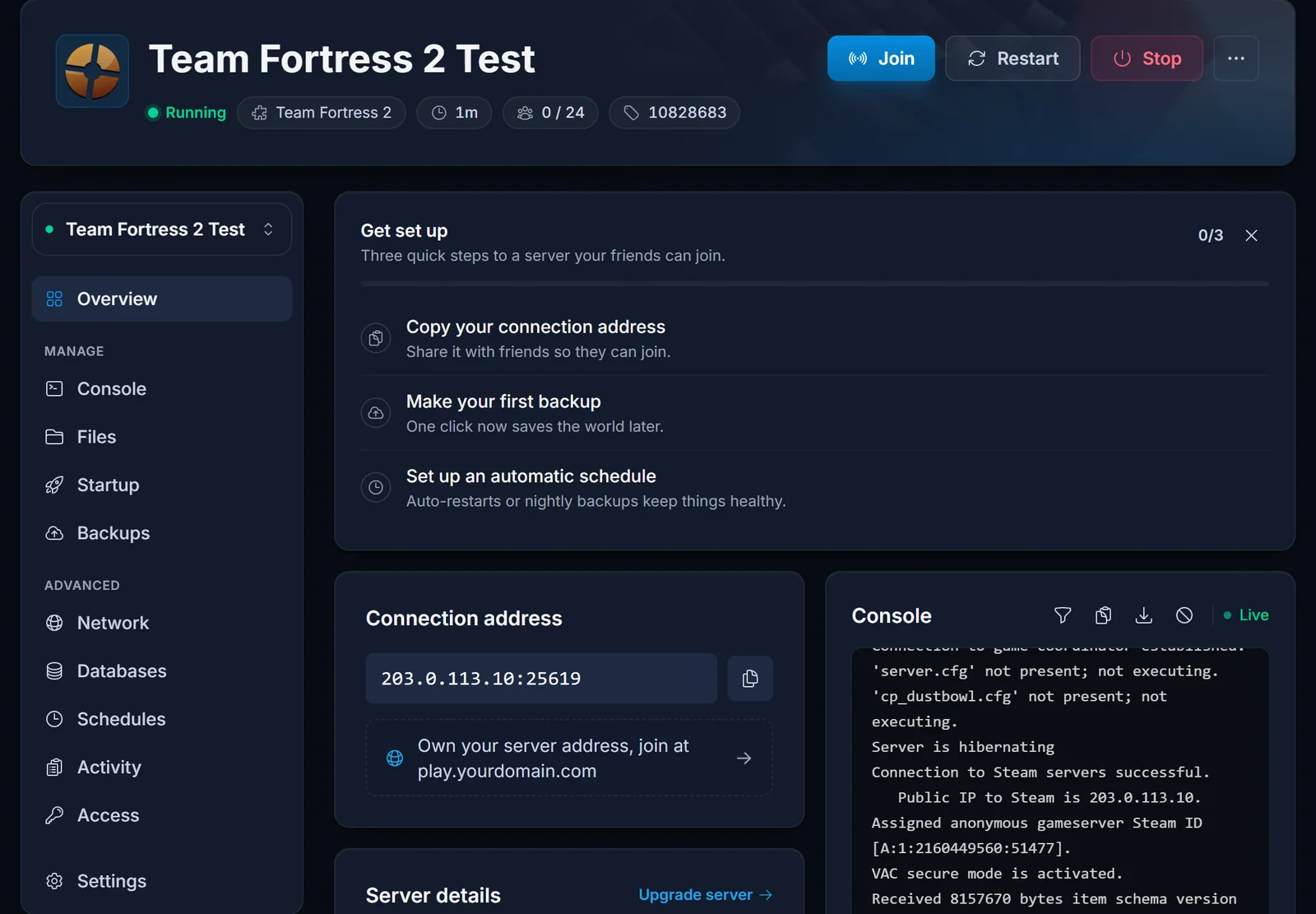
The port is part of the address. Our servers do not all run on 27015, so copying only the IP will not work.
The same card tells you whether the server is running and how many players are on it right now, which saves a wasted connection attempt.
Method 1: add the server to Favourites
This is the method to use when you are playing with a group regularly, because the server stays in the list.
- Launch Team Fortress 2 and pick Find a Game from the main menu.
- Choose Community Servers, then open the Favorites tab.
- Click Add a Server at the bottom of the window.
- Paste the full
IP:PORTand confirm. - The server appears in your Favourites with its name, map and player count. Double click it to connect.
A favourite is queried directly, so it will show up and let you connect even if the server is not in the public browser yet.
Method 2: the connect command
Faster if you already have the address on your clipboard, and it is the method server owners use constantly.
- Open Options, then Advanced, and tick Enable Developer Console. You only do this once.
- Back in game, press the ` key, just under Escape on most keyboards, to open the console.
- Type the connect command and press Enter:
connect 203.0.113.10:27015
If the server has a password, pass it in the same line:
connect 203.0.113.10:27015; password yourserverpassword
The console is also where you will see the real reason a connection failed, which the loading screen usually hides.
Method 3: find it in the community server browser
Only works once the server has a Steam Game Server Login Token, because that is what lists it publicly.
- Find a Game, then Community Servers, then the Internet tab.
- Type part of the server name into the search box at the bottom. Searching the name is far quicker than scrolling.
- Double click the server to join.
If your own server never shows up here, the token is the thing to check. Our Getting Started guide walks through creating one under App ID 440 and pasting it into the Startup tab.
Joining through Steam instead
Team Fortress 2 also accepts a join from the Steam client. In Steam, open View, then Game Servers, add the address on the Favorites tab there, and connect. Servers added in Steam and servers added in game share the same favourites list.
You can also right click a friend in your Steam friends list and pick Join Game while they are on the server, which is the simplest option of all if someone is already in.
Common issues
The connection times out. Check the port is included and correct, and that the server is actually running. The panel's Overview tab shows the state, and a stopped server will not answer.
The server does not appear in the Internet tab. It needs a Steam Game Server Login Token to be listed. Use Favourites or connect until that is sorted.
The console does not open. Developer console is off. Options, Advanced, Enable Developer Console, then press the key just under Escape.
You are asked for a password you do not have. The owner set sv_password. There is no way around it, ask them for it.
Your connection is refused with a version mismatch. The game updated and the server has not caught up yet. The owner needs to update it, which on our panel is a Reinstall.
Custom maps take a long time to load. You are downloading the map from the server itself. Nothing is broken, it is just slow unless the owner has set up a fast download host.
If you are setting up the server rather than joining it, start with Getting Started with Your Team Fortress 2 Server. Plans and specs are on the Team Fortress 2 server hosting page.
