
There are two ways onto an Arma Reforger server: enter the address directly, or find the server by name in the in-game browser. Direct Join is the faster one, and it works from PC, Xbox and PlayStation alike. This guide covers both.
Find your server address
Open your server in the control panel. The Overview tab shows the connect address and port, with a copy button next to it.
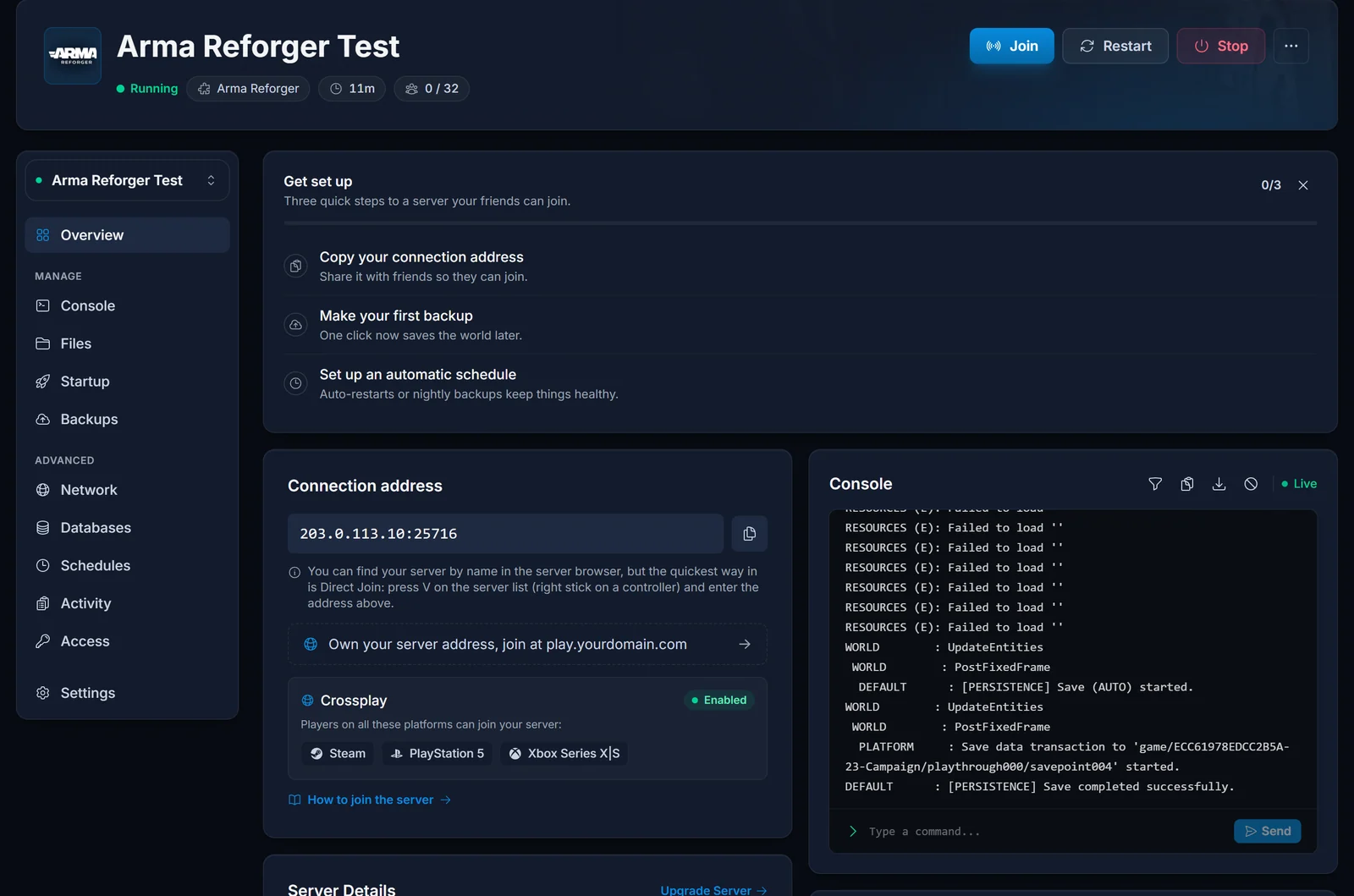
That address is the game port. Arma Reforger uses a separate query port for server listings, but you never type that one anywhere: the address above is the only thing a player needs.
Join with Direct Join
Direct Join is the quickest route in, and it is the one to use the moment your server is freshly started and has not appeared in the public list yet.
- Launch Arma Reforger and open Multiplayer.
- Press V on the server list. On a controller, press the right stick.
- Enter your server's address and port in the Direct Join box.
- Select Connect.
The keypress is easy to miss, which is why so many people assume Reforger has no direct connect at all. It is there on the server browser screen, just not spelled out as a button.
Find your server in the browser
If you would rather search for it, your server appears in the in-game browser under whatever you set as its Server Name. That field lives on the Startup tab of your panel.
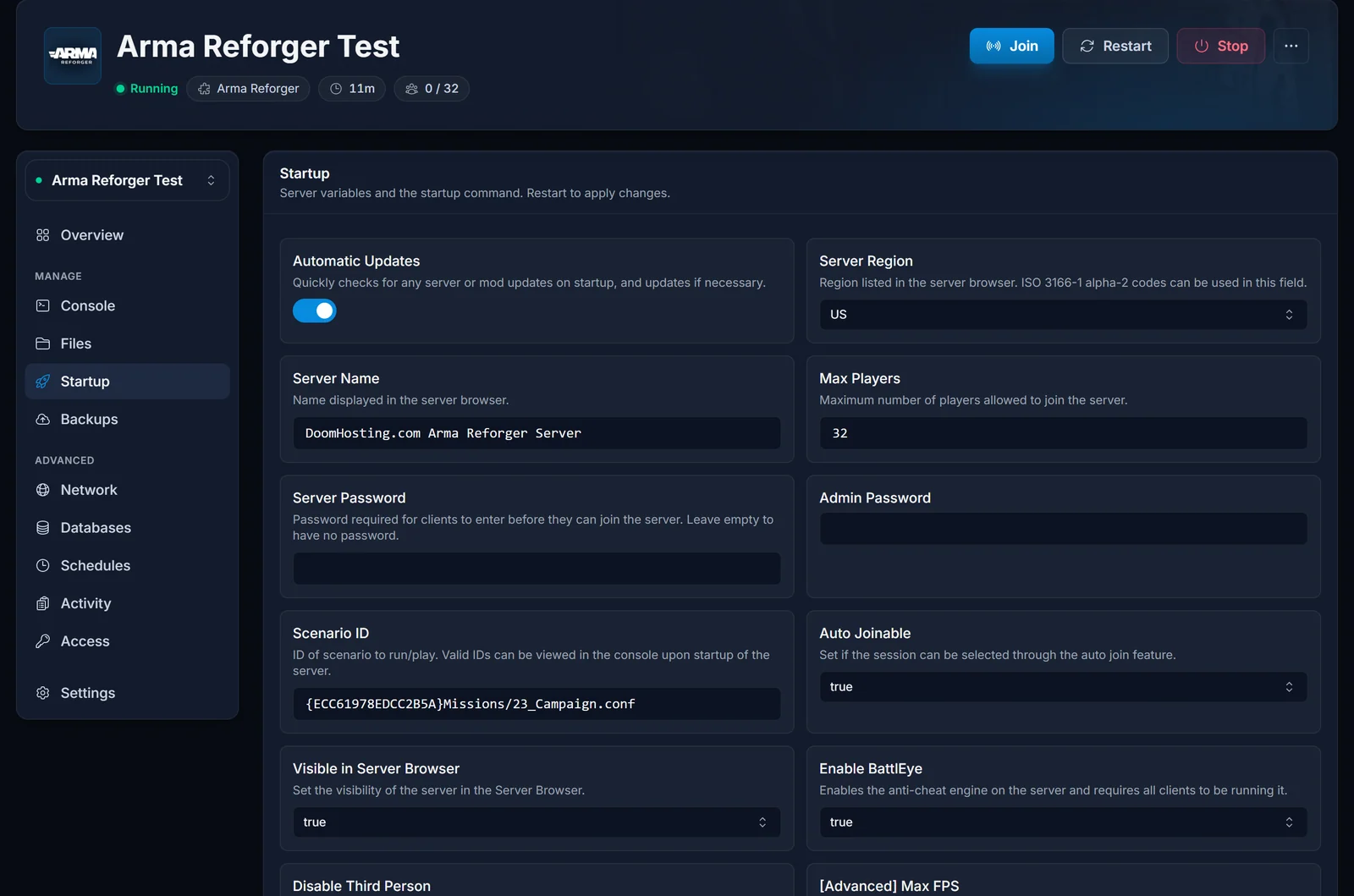
Open Multiplayer, then search for your server name. Two things have to be true for it to show up: Visible in Server Browser must be on, and the server must have finished starting. A server still downloading mods has not registered yet.
Give a distinctive name. A server called "Arma Reforger Server" is genuinely hard to find among the thousands already using that name.
Joining from Xbox or PlayStation
Crossplay is enabled by default on our servers, so Xbox Series X|S and PS5 players find your server the same way PC players do, through the in-game browser, and Direct Join works from a controller with the right stick.
Two limits are worth knowing up front. Consoles can join a server but can never host one, so there is always a PC-side server behind a console session. And PlayStation applies its own rules to modded servers, so a heavily modded server may not be reachable from PS5 even when everything on your side is correct.
If your server has a password
If you set a Server Password on the Startup tab, players are prompted for it when they connect. It is separate from the admin password, which is only for the #login command once you are in. If you want a fully open server, leave the field empty.
Common issues
- Server does not appear in the browser: check that Visible in Server Browser is on, and give a freshly started server a minute to register. A server that is still downloading mods will not list until it is done. Use Direct Join in the meantime, it works before the server ever lists.
- Direct Join says it cannot connect: use the game port from the Overview tab, not the query port. Confirm the server is actually running in the panel first.
- Players get a mod mismatch: clients download your server's mods when they join. Let the download finish rather than cancelling out of it.
- It worked yesterday and now nobody can join: after an Arma Reforger update, clients and servers must be on the same version. Restart your server so it pulls the new build.
Setting a server up for the first time? Start with Getting Started with your Arma Reforger server, which covers scenarios, admin access and mods.
