
You install Arma 3 mods from the control panel in three ways: search the Steam Workshop on the Mods tab, upload the preset you already use in the Arma 3 Launcher, or import a Workshop collection. Whichever you pick, the server downloads every mod on its next restart and copies the mod keys in for you.
Before you start
Open your server in the control panel and check one setting on the Startup tab: Automatic Updates has to be on. The server only downloads Workshop mods while it is, so with it off you can add mods all day and none of them arrive. The Mods tab shows a warning when it is off.
Search the Workshop on the Mods tab
Click Mods in the left sidebar under the Arma 3 heading. Type part of a mod's name and click Add on the one you want. Mods you already have show as Added.
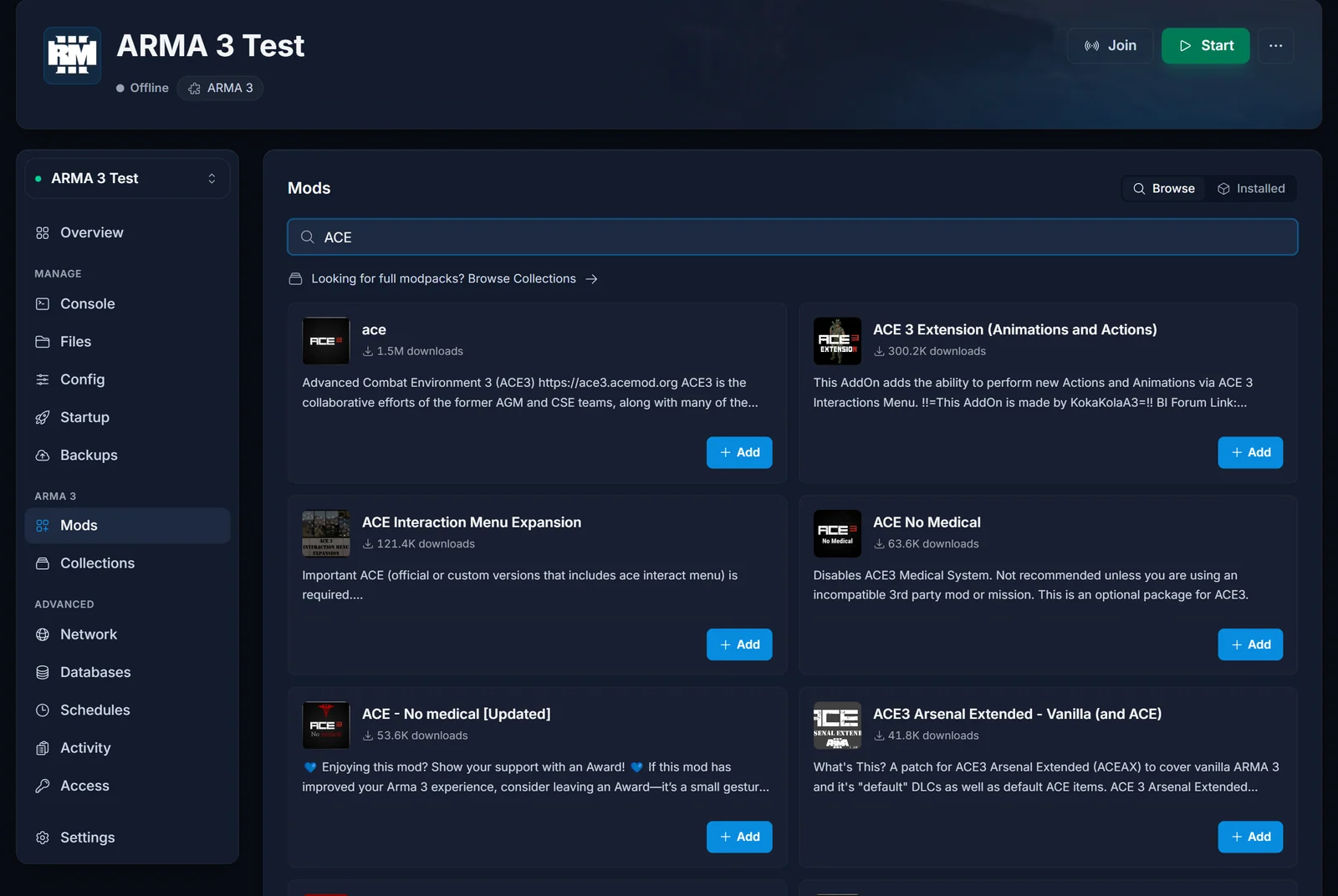
The Arma 3 Workshop holds far more scenarios than mods, and a scenario is a mission file, not something the server can load as a mod. The Mods tab only shows items tagged as mods, so what you find here is safe to add.
Upload your Arma 3 Launcher preset
If your group already plays with a modset, this is the fastest way to copy it to the server exactly. In the Arma 3 Launcher, open your preset and export it to a file. You get an HTML file listing every mod in it.
On the panel, open the Collections tab and click Upload preset. Pick the HTML file and the panel shows every Workshop mod in it before anything changes. Click Add to put them on your server.
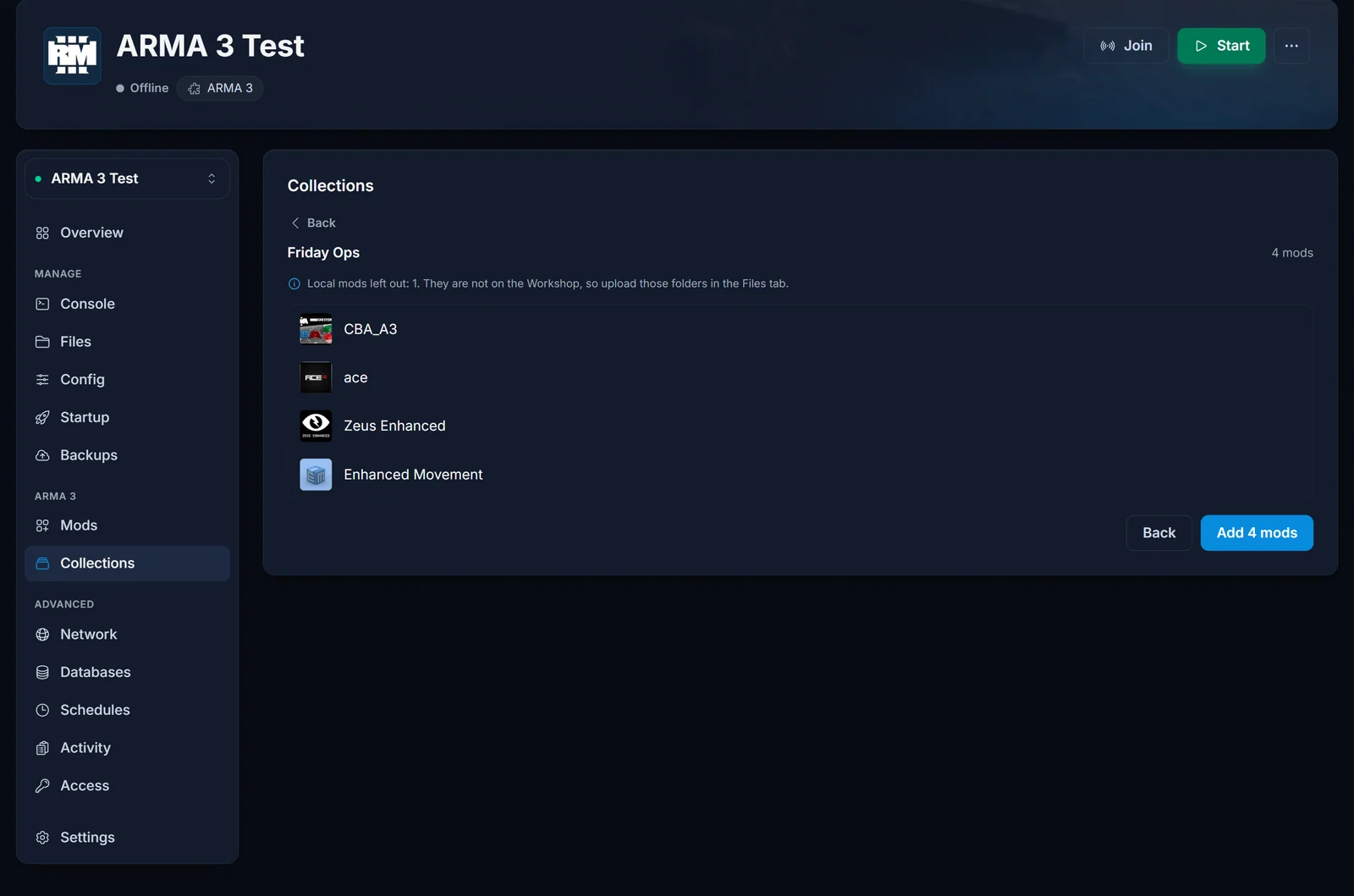
Mods marked Local in the Launcher are not on the Workshop, so the panel can't download them and tells you how many it left out. Upload those folders yourself on the Files tab and add each folder name to Additional Mods on the Startup tab.
Import a Workshop collection
The same Collections tab browses Steam Workshop collections, or you can paste a collection link. Collections for Arma 3 often bundle a scenario with its mods. The panel leaves scenarios out and says how many it skipped.
Restart to apply
Adding mods only updates your server's mod list. Click Restart now on the banner that appears, and the server downloads each mod from the Workshop on its way up. Big modsets like RHS take a while on that first restart, and later restarts only fetch what changed. The Console tab shows each download as it happens.
The .bikey file of every Workshop mod is copied into the keys folder automatically, so Verify signatures on the Config tab keeps working with your mods. Players need the same mods loaded to join, and the Arma 3 Launcher handles that for them when they join through it.
Already using a modlist.html
The Modlist File setting on the Startup tab can load a Launcher export from the server folder on top of the panel's list. If yours does, the Mods tab says how many mods it loads and offers Move them into this list, so the list on the Mods tab is the whole picture and removing a mod there really removes it.
If Modlist File points at a file that is not on the server, such as a path on your own PC, nothing loads from it and the Mods tab warns you. Upload the preset on the Collections tab instead and the panel clears the broken setting.
Common issues
- Mods never download: Automatic Updates is off on the Startup tab. Turn it on and restart.
- Players are kicked for mismatched files: their mods differ from the server's. Share the same preset so everyone loads an identical set.
- The mod order looks different from my preset: the server sorts the mod list when it starts, so the order can't be changed. Arma 3 works out dependencies itself, so mods that need CBA_A3 still load correctly.
- "SteamAPI initialization failed" in the log: every Linux Arma 3 server prints this and keeps running. The panel hides the line from the console.
New to running a server? Start with How to Set Up an Arma 3 Server. Need more room for a big modset? See Arma 3 server hosting.
