

You can run any Steam Workshop map, or a whole Workshop collection, on your Counter-Strike 2 server straight from the Startup tab in the panel. Paste the Workshop ID, restart, and the server downloads the map and switches to it on its own.
Before you start: the Steam token
Workshop maps are downloaded through Steam, so your server must be logged in to Steam with a valid Steam Gameserver Login Token (GSLT). Without one the server cannot fetch anything from the Workshop.
- Go to https://steamcommunity.com/dev/managegameservers and create a token with App ID 730.
- Paste it into Steam Gameserver Login Token on the Startup tab.
If the server already shows up in the community server browser, your token is fine.
Find the Workshop ID
Every map and collection on the Steam Workshop has a numeric ID. Open the map or collection page in your browser and look at the address bar:
https://steamcommunity.com/sharedfiles/filedetails/?id=3199583093
The number after ?id= is the ID you need. In the Steam client, right-click the page and choose Copy Page URL to get the same link.
Load one Workshop map
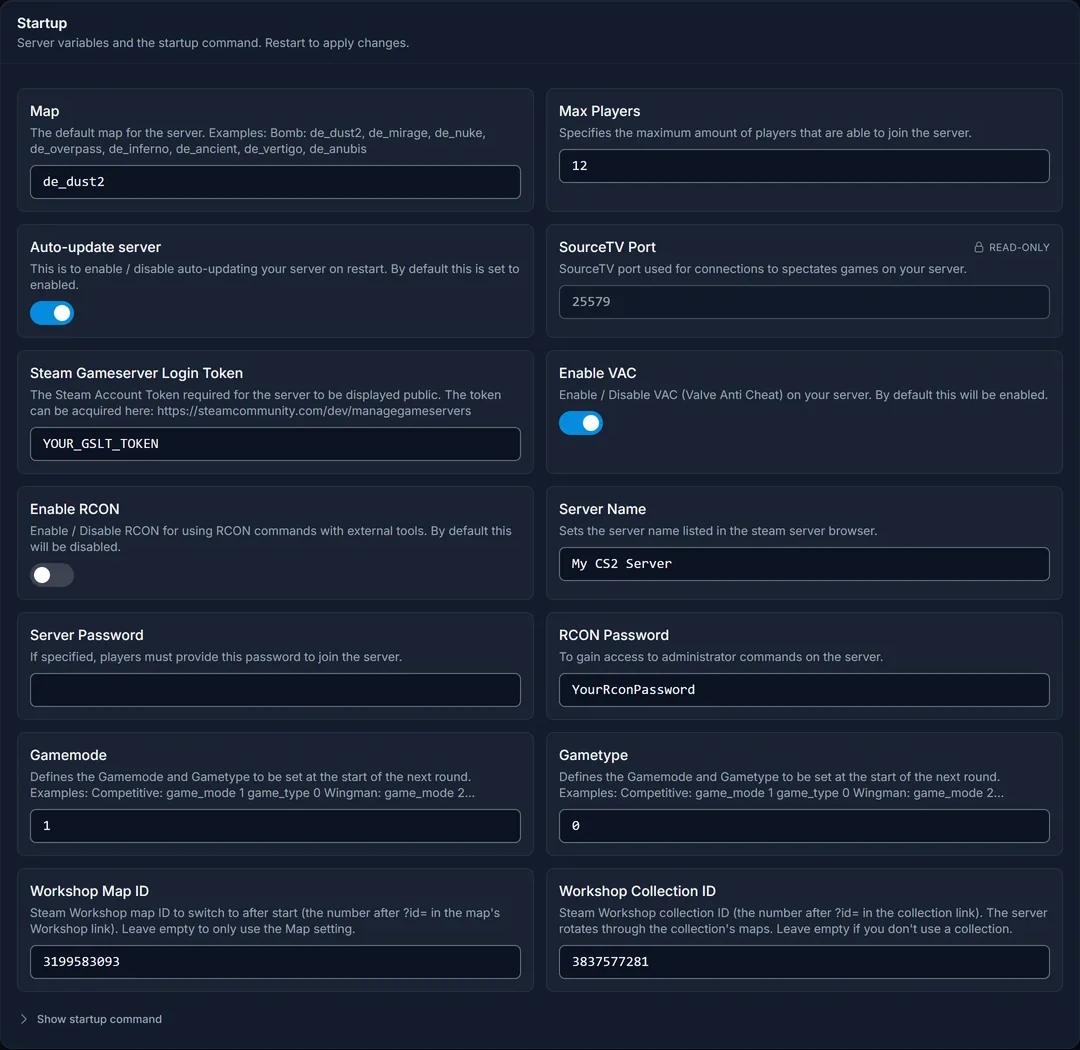
- Open your server in the panel and go to Startup.
- Paste the map's ID into Workshop Map ID.
- Leave Map on a normal map such as
de_dust2. - Restart the server.
The server first loads the map in the Map field, connects to Steam, then downloads your Workshop map and changes to it. The first start takes a little longer while the map downloads. After that it is cached on the server.
Keep a standard map in the Map field. The server needs a regular map to boot on before it can log in to Steam and fetch anything from the Workshop.
Run a Workshop collection
A collection is the easy way to run a map rotation, for example five jailbreak or surf maps.
- Paste the collection's ID into Workshop Collection ID.
- Put the ID of one map from the collection into Workshop Map ID. This is the map the server starts on.
- Restart the server.
The server downloads every map in the collection and switches its map group to the collection, so when a match ends it moves on to another map from the collection instead of a standard one.
Change map on a timer
How long each map runs is decided by the game's match settings, not by the panel. To switch maps every hour, open Files, go to game/csgo/cfg/ and add this line to server.cfg (create the file if it does not exist):
mp_timelimit 60
The value is in minutes. Plugins for modes like jailbreak or surf can override the round and time settings, so check your plugin's config if the map does not change.
Change map without a restart
On a running server you can switch maps from the Console tab:
host_workshop_map 3199583093
This lasts until the next restart. After a restart the server goes back to what is set on the Startup tab.
Use a map file you already have
If you have a map as a .vpk file instead of on the Workshop:
- Upload it to
game/csgo/maps/in the Files tab. - Type the file name without
.vpkinto Map on the Startup tab, for examplejb_mymap. - Leave Workshop Map ID and Workshop Collection ID empty and restart.
Common issues
The server is stuck on "starting". Check the Console. Failed to connect to Steam or We're not logged into Steam means the Steam token is missing, wrong or expired. Create a new one and paste it into Steam Gameserver Login Token.
"invalid map name" in the console. The Map field only works for maps that are on the server already. A Workshop map's name (like jb_peanut_ego) belongs in neither field: use its numeric ID in Workshop Map ID and keep a normal map in Map.
The map does not rotate. Make sure Workshop Collection ID holds the collection's ID, not a single map's ID, and that a time or round limit is set (see above).
The Workshop fields do nothing. If you filled in an ID, restarted, and the server still only loads the Map field, contact our support and we will update your server's startup settings for you.
Want a server to try it on? See our Counter-Strike 2 server hosting.
