Running your own Minecraft server gives you full control over gameplay, mods, and who joins your world. Whether you want a private survival world for friends or a public server with custom plugins, this guide walks you through the entire setup process.
Already running a free server on Aternos? Here is how to move it over without losing your world.

What You Need Before Starting
Before setting up your Minecraft server, make sure you have:
- A computer or VPS with at least 4GB RAM (8GB recommended for 10+ players)
- Java 17 or newer (Minecraft 1.17+ requires newer Java versions)
- A stable internet connection with upload speed of at least 5 Mbps
- Basic command line knowledge (not scary, we will explain everything)
Step 1: Install Java
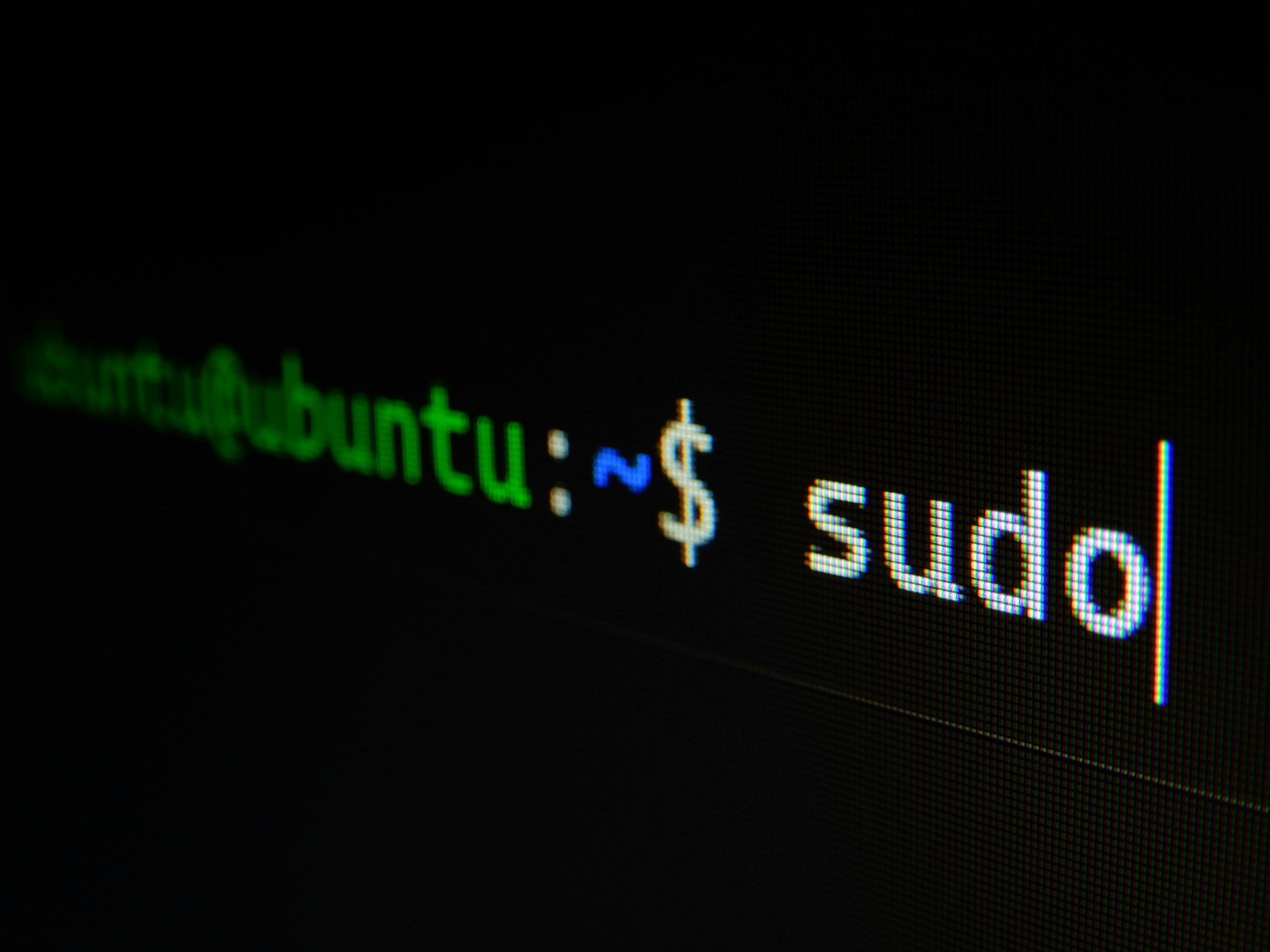
Minecraft servers run on Java, so you need to install it first.
For Windows:
- Visit java.com and download the latest Java Runtime Environment
- Run the installer and follow the prompts
- Verify installation by opening Command Prompt and typing:
java -version
For Linux (Ubuntu/Debian):
sudo apt update
sudo apt install openjdk-17-jre-headless
For Linux (CentOS/RHEL):
sudo yum install java-17-openjdk
Step 2: Create a Server Folder
Create a dedicated folder for your Minecraft server. This keeps everything organized.
- Create a new folder named
MinecraftServer - Place this folder in a location with plenty of storage space (games save data)
- Avoid folders like Desktop or Documents - these can cause issues
Step 3: Download Server Software
You have several options for server software. Here are the most popular:
Vanilla Minecraft Server
The basic Minecraft experience with no modifications. Download from the official Minecraft download page.
Spigot
A optimized fork of Vanilla with better performance and plugin support. Download from SpigotMC.org.
Paper
Built on Spigot, Paper offers even better performance and more configuration options. Recommended for most modded servers. Download from PaperMC.io.
Purpur
The most optimized option, built on Paper with additional tweaks for maximum performance. Great for large servers. Download from PurpurMC.org.
Download the .jar file and place it in your server folder.
Step 4: Create the Start Script
You need a script to launch the server. Create a new text file named start.bat (Windows) or start.sh (Linux).
Windows (start.bat):
@echo off
java -Xmx4G -Xms2G -jar server.jar nogui
pause
Replace 4G with the amount of RAM you want to allocate and server.jar with your actual filename.
Linux (start.sh):
#!/bin/sh
java -Xmx4G -Xms2G -jar server.jar nogui
Make it executable:
chmod +x start.sh
Step 5: Configure server.properties
The first time you run the server, it will create a server.properties file. Open this file with a text editor to configure your server.
Key settings you should change:
server-port=25565
max-players=20
level-name=world
gamemode=survival
difficulty=normal
online-mode=true
Explanation of Important Settings:
- server-port: The port players use to connect (default 25565)
- max-players: Maximum number of players allowed
- level-name: The name of your world folder
- gamemode: survival, creative, adventure, or spectator
- difficulty: peaceful, easy, normal, or hard
- online-mode: Set to
trueto require premium Minecraft accounts
Step 6: Accept the EULA
When you first run the server, it will create an eula.txt file. Open it and change eula=false to eula=true. This accepts the Minecraft End User License Agreement.
Step 7: Port Forwarding (For Home Servers)
If you are hosting the server on your home computer (not a VPS), you need to forward port 25565 so players can connect from outside your network.
- Log into your router (usually at 192.168.1.1 or 192.168.0.1)
- Find the "Port Forwarding" or "Virtual Server" section
- Create a new rule:
- External Port: 25565
- Internal Port: 25565
- Protocol: TCP
- Internal IP: Your computer's local IP address
- Save the rule and restart your router
You can find your local IP by typing ipconfig (Windows) or ip addr (Linux) in command line.
Step 8: Start the Server
Double-click your start script or run it from command line:
./start.sh
The server will take a minute or two to start. You will see console output showing the server status. Once you see "Done" in the console, your server is ready.
Step 9: Connect to Your Server
For Players on Your Network:
Open Minecraft, click Multiplayer, click Add Server, and enter:
- Server Name: Whatever you want
- Server Address:
localhost(if on the same computer) or your local IP (if on the same network)
For Players Outside Your Network:
Players need your public IP address. Find it by visiting whatismyip.com.
Give them this address: your-public-ip:25565
For VPS Hosting:

Players connect directly to your VPS IP address on port 25565.
Step 10: Basic Server Commands
Once the server is running, you can use these commands in the console:
stop- Safely shutdown the serverkick [player]- Remove a player from the serverban [player]- Ban a playerop [player]- Give a player operator statuswhitelist on- Enable whitelistwhitelist add [player]- Add player to whitelist
Optimizing Your Server Performance
A few quick tips to improve server performance:
- Allocate RAM properly: Set
-Xmxto half your available RAM - Use Paper or Purpur: These builds offer better performance than Vanilla
- Limit view distance: Set
view-distancein server.properties to 8-10 - Remove laggy plugins: Test plugins individually to find performance issues
- Use SSD storage: HDD drives cause significant lag on busy servers
Should You Host Yourself or Use a VPS?
Hosting at home works for small servers with a few friends, but comes with limitations:
- Your home internet upload speed limits player capacity
- Your IP address is exposed to players
- Your computer must stay running 24/7
- Power outages or internet issues take the server offline
For anything beyond a few friends, a VPS or dedicated game server hosting is the better choice. Providers like DoomHosting offer optimized Minecraft server hosting with DDoS protection, 99.9% uptime, and professional support.
Ready to Launch Your Server?
Setting up a Minecraft server is straightforward when you follow these steps. Take your time with configuration, test with friends first, and gradually add plugins or mods as you get comfortable.
If you want to skip the technical setup and get straight to playing, consider professional Minecraft server hosting. It handles all the infrastructure so you can focus on building and playing with your community.
Rent a Minecraft Server - Instant setup, DDoS protection, and 24/7 support. Use code SAVE20 for 20% off your first month.