Minecraft Bedrock Edition brings the magic of cross-platform play to millions of players worldwide. Whether you are on mobile, console, or PC, this comprehensive guide will help you connect to any Bedrock server seamlessly.
Understanding Bedrock Edition Cross-Platform Play
Bedrock Edition supports true cross-platform multiplayer, meaning players on different devices can play together on the same server. This includes:
- Mobile devices: Android and iOS smartphones/tablets
- Gaming consoles: Xbox One, Xbox Series X/S, PlayStation 4, PlayStation 5, Nintendo Switch
- PC platforms: Windows 10/11 Bedrock Edition
- VR platforms: Oculus Rift and other VR headsets
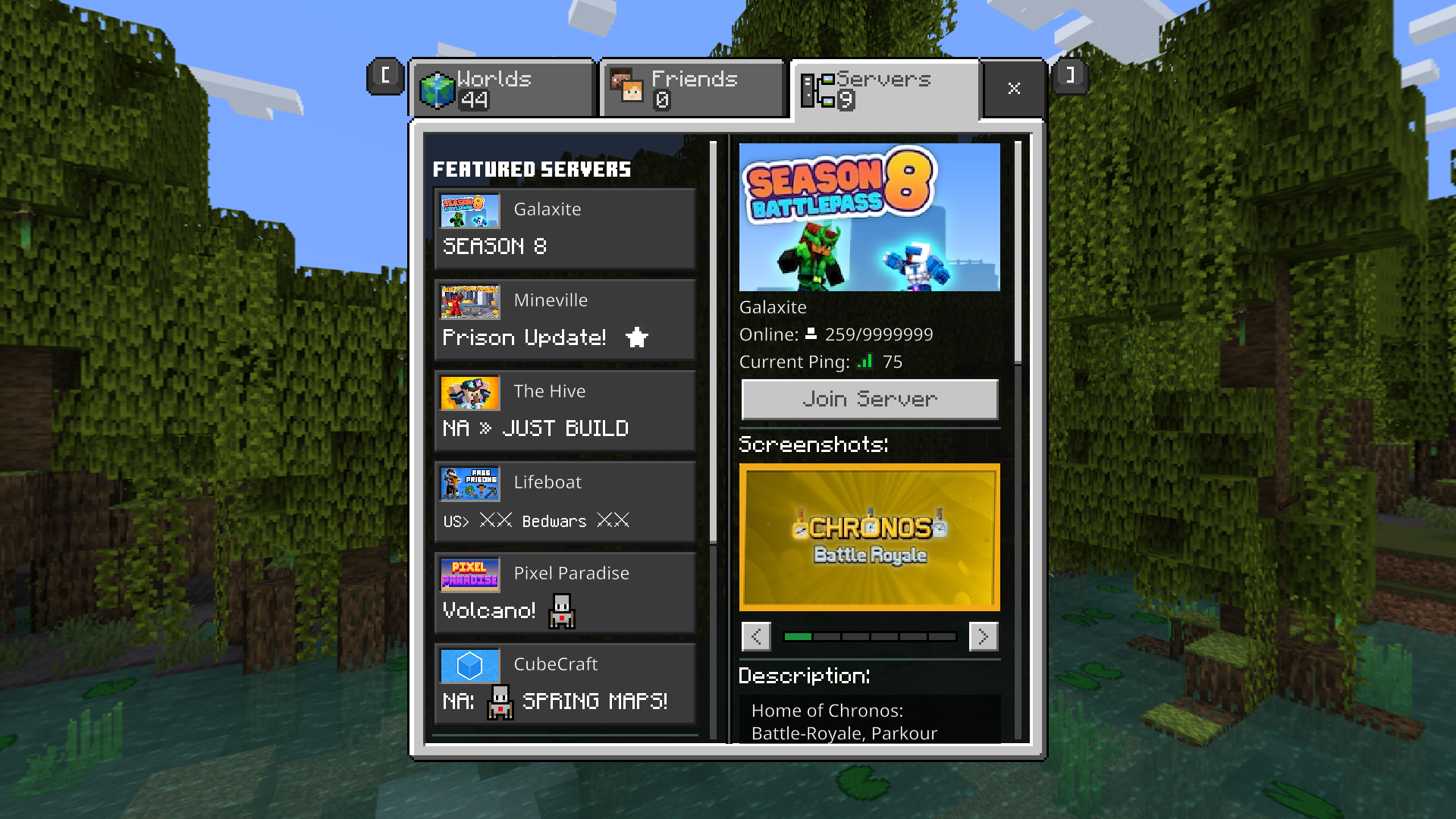
Method 1: Joining Through Featured Servers
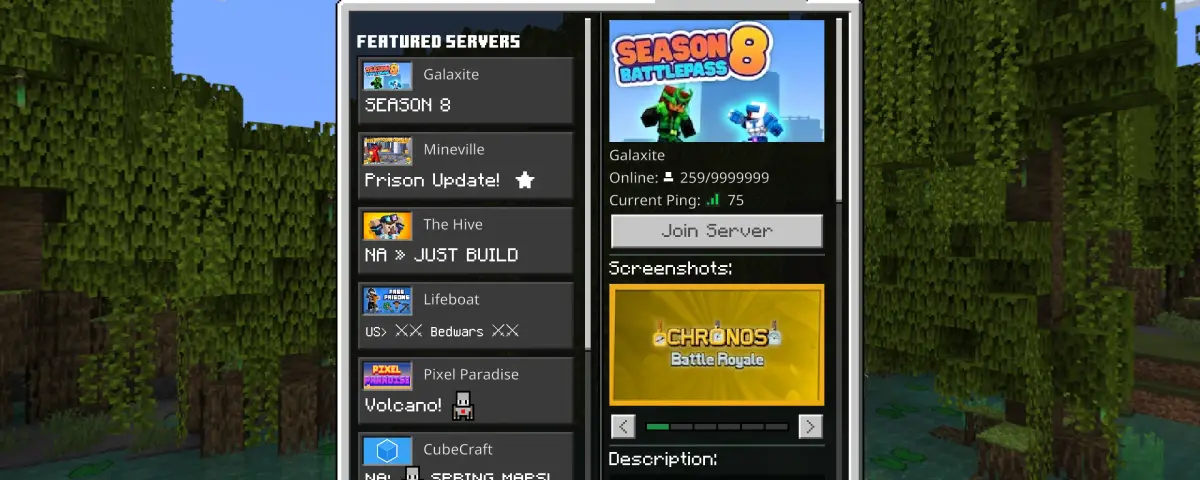
Bedrock Edition includes several featured servers that are always available:
Step 1: Access the Servers Tab
- Launch Minecraft Bedrock Edition
- From the main menu, select "Play"
- Click the "Servers" tab at the top
Step 2: Choose a Featured Server
- Browse the list of featured servers (Mineplex, Lifeboat, InPvP, etc.)
- Select your preferred server
- Click "Join Server" to connect instantly
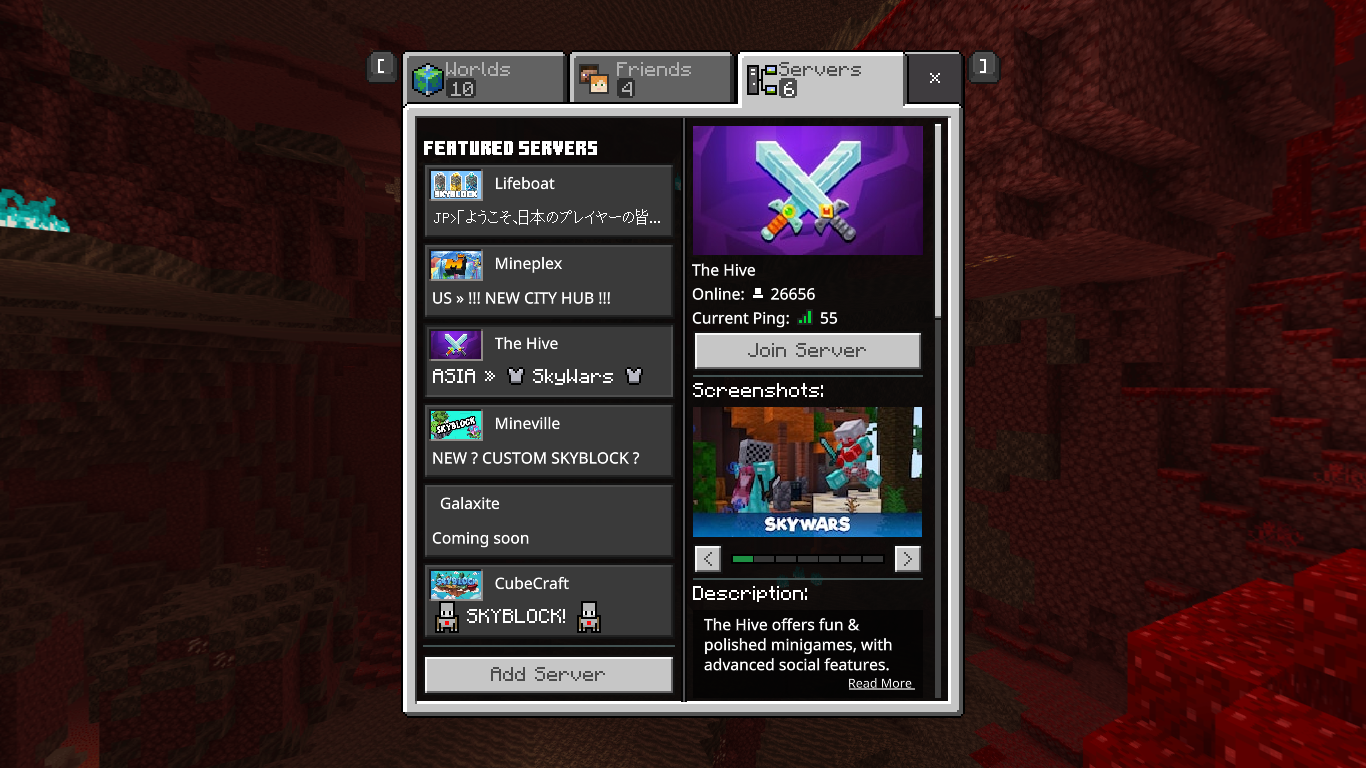
Note: Featured servers are pre-configured and require no additional setup.
Method 2: Adding External Servers
To connect to community servers not listed in the featured section:
On Mobile Devices (Android/iOS)
Step 1: Navigate to Server Settings
- Open Minecraft Bedrock Edition
- Go to "Play" > "Servers"
- Scroll down and select "Add Server"
Step 2: Enter Server Information
- Server Name: Choose a descriptive name for the server
- Server Address: Enter the server IP (e.g., play.example.com)
- Port: Usually 19132 for Bedrock servers
- Save the server configuration
Step 3: Connect to the Server
- Your added server will appear in the "Servers" list
- Tap on it to join the server
On Console Platforms (Xbox, PlayStation, Switch)
Console players face restrictions when adding external servers directly. Here are alternative methods:
Method A: Using Realm Codes
- Some servers provide Realm codes for console access
- Go to "Play" > "Join Realm"
- Enter the provided Realm code
- Join the server through the Realm system
Method B: Friend Invites
- Have a friend on PC or mobile add the server
- Join their world when they are playing on that server
- This bypasses console restrictions
On Windows 10/11 Bedrock Edition
Step 1: Open Server Settings
- Launch Minecraft Bedrock Edition
- Navigate to "Play" > "Servers"
- Click "Add Server" at the bottom
Step 2: Configure Server Details
- Server Name: Assign a memorable name
- Server Address: Input the server IP or domain
- Port: Enter the server port (default: 19132)
- Click "Save" to add the server
Step 3: Join the Server
- The server appears in your server list
- Click on it to connect
Method 3: Joining Through Friend Invites
One of the easiest ways to join servers, especially on restricted platforms:
Step 1: Add Friends
- Ensure you and your friends have Microsoft accounts linked
- Add friends through Xbox Live or Microsoft accounts
- Accept friend requests from other players
Step 2: Join Friend's World
- When a friend is playing on a server, their world appears in your "Friends" tab
- Select their world from the friends list
- Join directly without needing server details
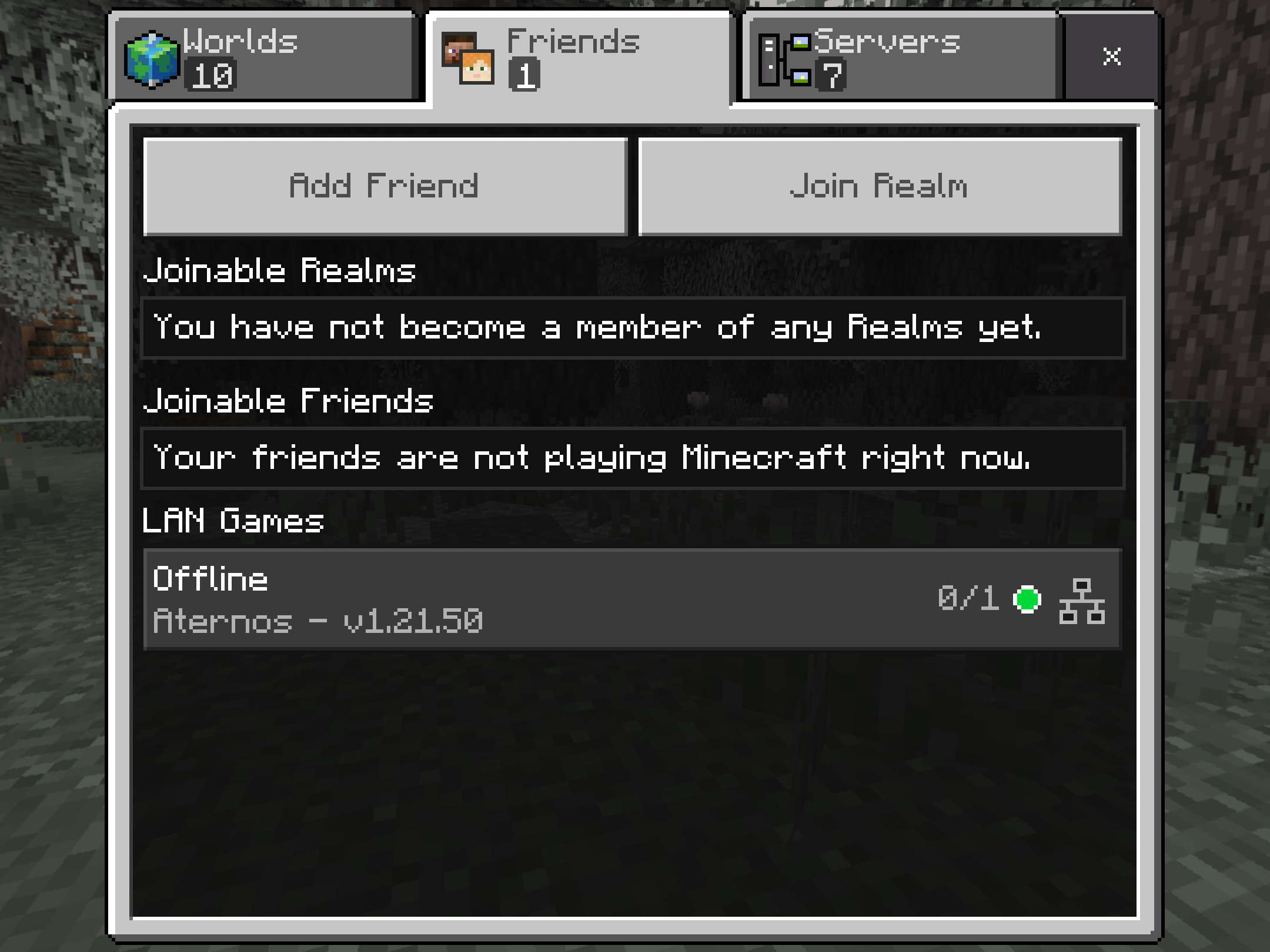
Cross-Platform Friend Management
- Android/iOS: Use Xbox app or in-game friend system
- Console: Native Xbox Live integration
- PC: Xbox app or Microsoft Store integration
Method 4: Using Server Browser Apps (Mobile)
For mobile users, third-party server browser apps can help discover and join servers:
Popular Server Browser Options
- Server Finder for Minecraft PE: Android app for discovering servers
- MCPE Servers: Community-driven server lists
- MinecraftPocket-Servers: Web-based server browser
Safety Considerations
- Only download apps from official app stores
- Read reviews and check permissions before installing
- Some server browsers may contain ads or require purchases
Platform-Specific Connection Differences
Mobile Devices
Advantages:
- Direct server addition support
- Touch-optimized interface
- Portable gaming anywhere
Limitations:
- Smaller screen for detailed gameplay
- Touch controls may be less precise
- Battery life considerations
Gaming Consoles
Advantages:
- Large screen gaming experience
- Controller precision
- Stable internet connections
Limitations:
- Restricted server addition capabilities
- Rely on friend invites or Realm codes
- Platform-specific online service requirements
PC (Windows Bedrock Edition)
Advantages:
- Full server addition capabilities
- Keyboard and mouse support
- Best performance and graphics options
Limitations:
- Requires Windows 10/11
- Different from Java Edition features
Troubleshooting Cross-Platform Connection Issues
"Unable to Connect to Server" Error
Common causes:
- Server is offline or full
- Incorrect server address or port
- Network connectivity issues
- Platform restrictions
Solutions:
- Verify server address and port number
- Check if server supports Bedrock Edition
- Try connecting through a different method (friend invite)
- Restart your game and try again
Version Compatibility Issues
Problem: Server version mismatch Solution:
- Ensure your Bedrock Edition is updated to the latest version
- Check server compatibility requirements
- Some servers support multiple versions automatically
Console Connection Problems
Problem: Cannot add external servers on console Solutions:
- Use friend invites to join servers
- Look for servers that provide Realm codes
- Consider using a mobile device or PC for initial server setup
Cross-Platform Authentication Issues
Problem: Microsoft account authentication failures Solutions:
- Ensure Microsoft account is properly linked
- Sign out and back into your Microsoft account
- Check Xbox Live service status
- Verify internet connection stability
Optimizing Your Bedrock Server Experience
Network Performance Tips
- Use Wi-Fi instead of cellular data when possible
- Position mobile devices close to your router
- Close background apps that use internet bandwidth
- Consider using a gaming VPN for better routing
Platform-Specific Optimizations
Mobile Optimization
- Enable "Reduce Lag" in video settings
- Lower render distance for better performance
- Close other apps running in background
- Keep device charged during longer play sessions
Console Optimization
- Use wired internet connection when possible
- Ensure console system software is updated
- Clear system cache if experiencing issues
- Check for game updates regularly
PC Optimization
- Update graphics drivers
- Allocate sufficient RAM to Minecraft
- Close unnecessary programs
- Use performance-optimized settings
Understanding Server Types in Bedrock Edition
Featured Servers
- Large, professionally managed servers
- Built-in minigames and activities
- Moderated content and chat
- Regular events and updates
Community Servers
- Player-hosted or smaller professional servers
- Custom game modes and modifications
- Smaller player communities
- May require specific connection methods
Realm Servers
- Official Mojang hosting service
- Easy cross-platform access
- Subscription-based service
- Simple friend invitation system
Local Network Servers
- LAN-based multiplayer
- Same Wi-Fi network required
- No internet connection needed
- Perfect for local multiplayer sessions
Security and Safety Guidelines
Protecting Your Account
- Never share your Microsoft account credentials
- Use strong, unique passwords
- Enable two-factor authentication when available
- Be cautious of phishing attempts
Safe Server Practices
- Only join servers from trusted sources
- Report inappropriate behavior to server moderators
- Avoid sharing personal information in chat
- Use parental controls for younger players
Community Guidelines
- Follow server rules and guidelines
- Respect other players regardless of their platform
- Report bugs or issues to server administrators
- Contribute positively to the gaming community
Conclusion
Minecraft Bedrock Edition's cross-platform capabilities make it easier than ever to play with friends regardless of their device. While each platform has its own connection methods and limitations, understanding these differences will help you join any server successfully.
Whether you prefer the portability of mobile gaming, the comfort of console play, or the versatility of PC gaming, Bedrock Edition ensures you can connect with the global Minecraft community. Remember that connection quality depends on both your internet setup and the server's performance.
Looking to create your own cross-platform Minecraft community? Our professional Minecraft server hosting solutions provide reliable, high-performance servers that support all Bedrock Edition platforms for seamless multiplayer experiences.